在 Linear 中使用 Codex,可以从 issues 委派工作。把 issue assign 给 Codex,或在 comment 中 mention @Codex,Codex 会创建一个 cloud task,并回复 progress 和 results。
Codex in Linear 可用于 paid plans(参见 Pricing)。
如果你使用 Enterprise plan,请让 ChatGPT workspace admin 在 workspace settings 中打开 Codex cloud tasks,并在 connector settings 中启用 Codex for Linear。
设置 Linear integration
通过在 Codex 中连接 GitHub,并为你希望 Codex 工作的 repository 创建 environment,来设置 Codex cloud tasks。
前往 Codex settings,为你的 workspace 安装 Codex for Linear。
在 Linear issue 的 comment thread 中 mention @Codex,以 link 你的 Linear account。
把工作委派给 Codex
你可以通过两种方式委派:
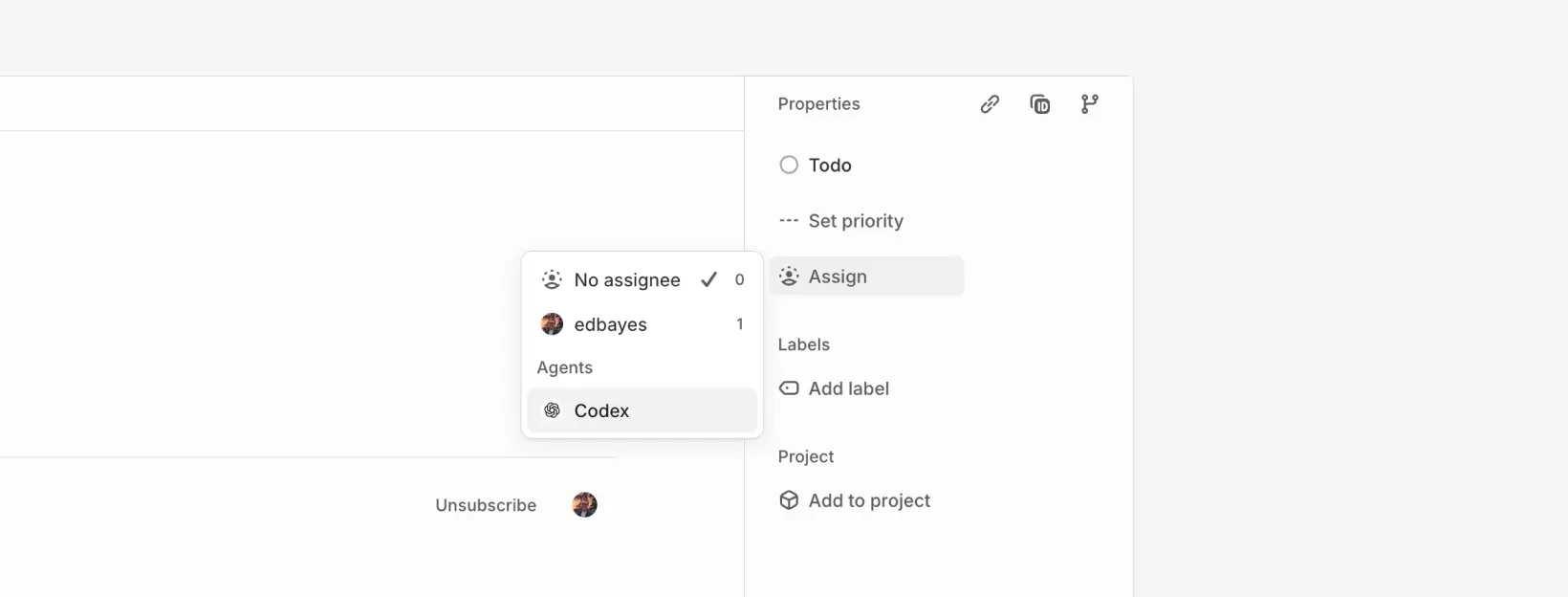
把 issue assign 给 Codex
安装 integration 后,你可以像把 issues assign 给队友一样 assign 给 Codex。Codex 会开始工作,并把 updates 发回 issue。
在 comments 中 mention @Codex
你也可以在 comment threads 中 mention @Codex 来委派工作或提问。Codex 回复后,可以在同一 thread 中继续 follow up,延续同一个 session。
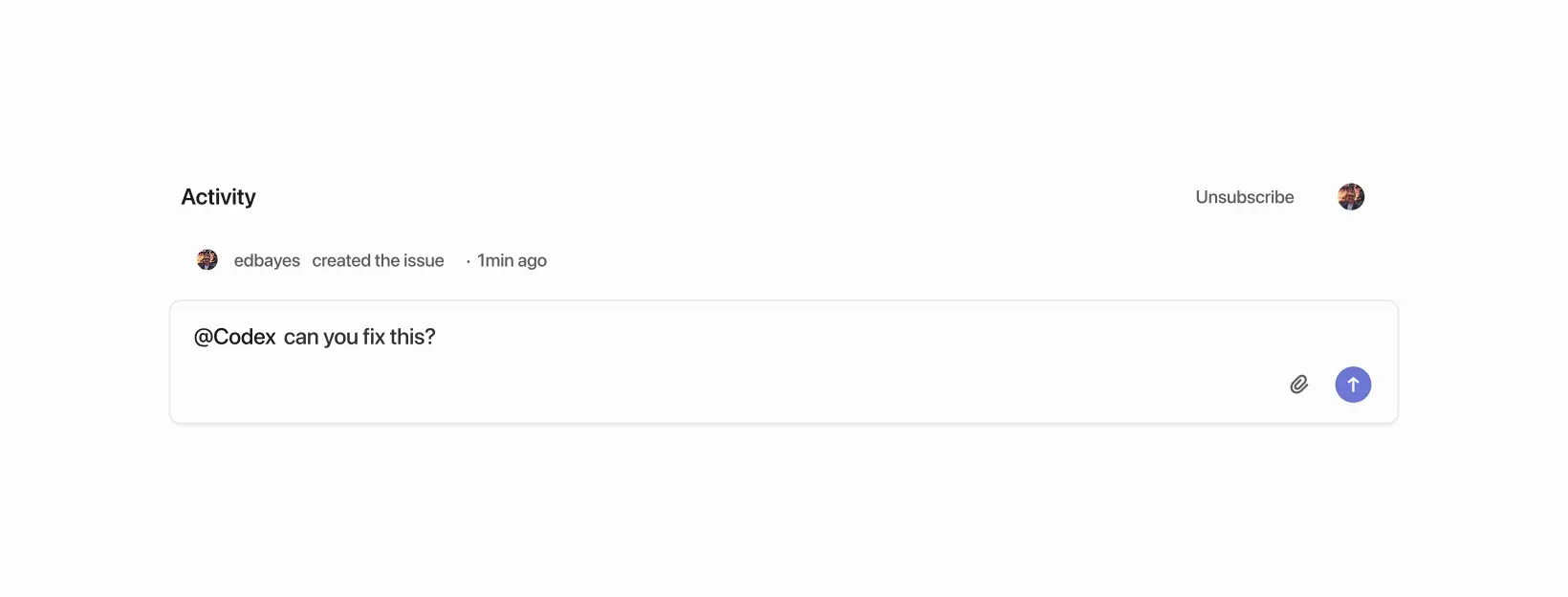
Codex 开始处理 issue 后,会选择要使用的 environment 和 repo。要固定特定 repo,请在 comment 中写明,例如:@Codex fix this in openai/codex。
要跟踪 progress:
打开 issue 上的 Activity 查看 progress updates。
打开 task link,以更详细地跟进。
task 完成后,Codex 会发布 summary 和 completed task link,方便你创建 pull request。
Codex 如何选择 environment 和 repo
Linear 会根据 issue context 推荐 repository。Codex 会选择最匹配该推荐的 environment。如果请求有歧义,它会回退到你最近使用的 environment。
task 会在该 environment repo map 中列出的第一个 repository 的 default branch 上运行。如果需要不同默认值或更多 repositories,请在 Codex 中更新 repo map。
如果没有可用的合适 environment 或 repository,Codex 会在 Linear 中回复修复该问题的说明,然后你可以重试。
自动把 issues assign 给 Codex
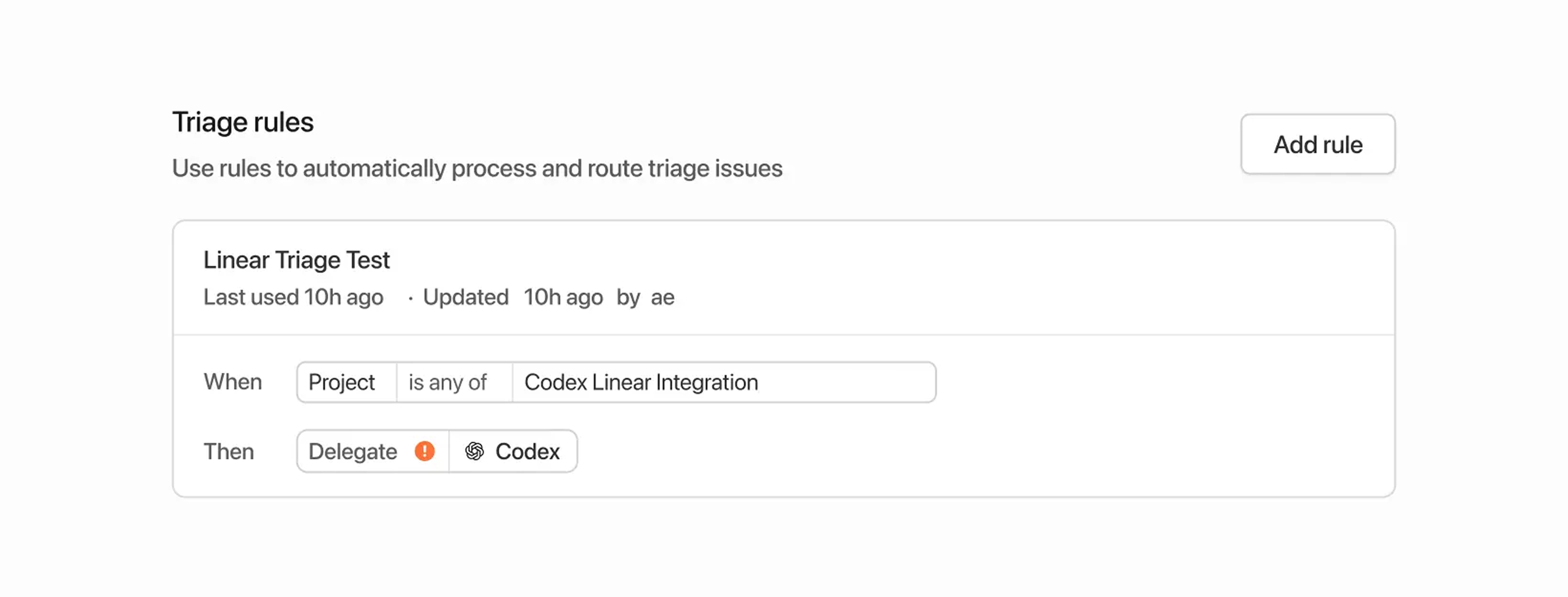
你可以使用 triage rules 自动把 issues assign 给 Codex:
在 Linear 中前往 Settings。
在 Your teams 下选择你的 team。
在 workflow settings 中打开 Triage 并启用它。
在 Triage rules 中创建一条 rule,并选择 Delegate > Codex(以及你想设置的任何其他 properties)。
当 new issues 进入 triage 时,Linear 会自动把它们 assign 给 Codex。使用 triage rules 时,Codex 会使用 issue creator 的 account 运行 tasks。
Data usage, privacy, and security
当你 mention @Codex 或把 issue assign 给它时,Codex 会接收你的 issue content,以理解请求并创建 task。数据处理遵循 OpenAI Privacy Policy、Terms of Use 和其他适用 policies。关于 security 的更多信息,请参阅 Codex security documentation。
Codex 使用 large language models,可能会出错。请始终 review answers 和 diffs。
Tips and troubleshooting
Missing connections:如果 Codex 无法确认你的 Linear connection,它会在 issue 中回复一个用于 connect account 的 link。
Unexpected environment choice:在 thread 中回复你想使用的 environment(例如 @Codex please run this in openai/codex)。
Wrong part of the code:在 issue 中添加更多 context,或在 @Codex comment 中给出明确 instructions。
更多帮助:参见 OpenAI Help Center。
为 local tasks 连接 Linear(MCP)
如果你使用 Codex app、CLI 或 IDE Extension,并希望 Codex 在本地访问 Linear issues,请配置 Codex 使用 Linear Model Context Protocol (MCP) server。
要了解更多,请查看 Linear MCP docs。
无论你使用 IDE extension 还是 CLI,MCP server 的设置步骤都相同,因为二者共享同一份 configuration。
使用 CLI(推荐)
如果你已经安装 CLI,请运行:
codex mcp add linear --url https://mcp.linear.app/mcp这会提示你使用 Linear account 登录,并将它连接到 Codex。
手动配置
在 editor 中打开 ~/.codex/config.toml。
添加以下内容:
[mcp_servers.linear] url = "https://mcp.linear.app/mcp"运行 codex mcp login linear 进行登录。