通用
选择文件在哪里打开、threads 中显示多少 command output,以及 terminal tabs 默认在哪里打开。你还可以要求使用 Cmd+Enter 输入多行 prompts,或在线程运行时阻止电脑睡眠。
个人资料
使用 Profile 查看 activity insights、lifetime tokens、peak tokens、streaks、你的最长任务以及 token activity。你也可以更新 profile details,例如头像、显示名称和用户名,并保存带有 usage highlights 的 profile card。共享 profile cards 可用于 consumer ChatGPT plans。
符合条件的用户也可以从 profile menu 发送 Codex invitations。在符合条件的 personal plan 上选择 Invite a friend,或在符合条件的 Business workspace 中选择 Invite a coworker。请查看邀请朋友和同事以了解当前 rewards、limits 和 eligibility。
键盘快捷键
打开 Keyboard Shortcuts 可查看 commands、修改 bindings,或把自定义 shortcuts 重置为默认值。使用搜索框按 command name 查找快捷键,或切换到 keystroke search 并按下组合键,查找使用该组合键的 command。
通知
选择 turn completion notifications 何时出现,以及 app 是否应提示获取 notification permissions。
Agent 配置
app 中的 Codex agents 会继承与 IDE 和 CLI extension 相同的配置。常用设置可以使用 app 内 controls;高级选项可以编辑 config.toml。更多细节请参阅 Codex security 和 config basics。
外观
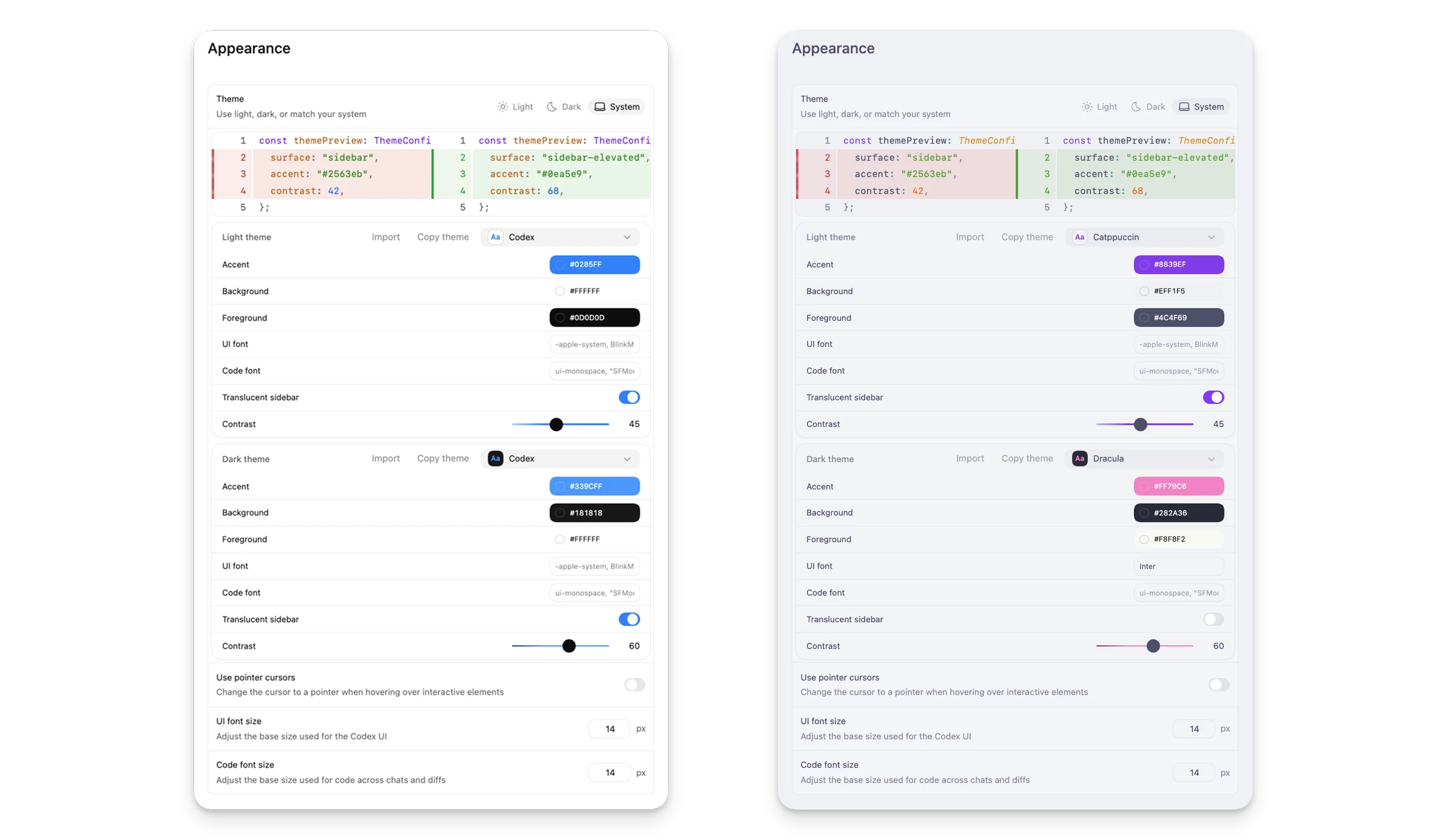
在 Settings 中,你可以通过选择 base theme、调整 accent、background 和 foreground colors,以及更改 UI 和 code fonts 来改变 Codex app 的外观。你也可以把自己的 custom theme 分享给朋友。
Codex pets
Codex pets 是 app 的可选 animated companions。在 Settings 中进入 Appearance,并选择 Pets 来选择内置 pet,或从你的本地 Codex home 刷新 custom pets。你可以在 composer 中输入 /pet,在 Settings > Appearance 中使用 Wake Pet 或 Tuck Away Pet,或按 Cmd+K / Ctrl+K 并运行同样的 commands 来切换 floating overlay。
这个 overlay 会在你使用其他 apps 时保持 active Codex work 可见。它会显示 active thread,反映 Codex 是正在运行、等待输入还是准备好审查,并将该状态和一条简短的 progress prompt 配对,让你不用重新打开 thread 就能快速看到发生了什么变化。
要创建你自己的 pet,请安装 hatch-pet skill:
$skill-installer hatch-pet从 command menu 重新加载 skills。按 Cmd+K 或 Ctrl+K,选择 Force Reload Skills,然后让该 skill 创建一个 pet:
$hatch-pet create a new pet inspired by my recent projectsGit
使用 Git settings 统一 branch naming,并选择 Codex 是否使用 force pushes。你还可以设置 Codex 用来生成 commit messages 和 pull request descriptions 的 prompts。
集成与 MCP
通过 MCP(Model Context Protocol)连接外部工具。你可以启用 recommended servers,或添加自己的 server。如果某个 server 需要 OAuth,app 会启动 auth flow。这些 settings 也适用于 Codex CLI 和 IDE extension,因为 MCP configuration 存放在 config.toml 中。详情请参阅 Model Context Protocol docs。
浏览器
使用这些 settings 安装或启用 bundled Browser plugin、设置 Codex Chrome extension,并管理 allowed 和 blocked websites。除非你已允许某个网站,否则 Codex 在使用网站前会先询问。移除 blocked site 后,Codex 下次在 browser 中使用该网站前会再次询问。
在 Developer mode 下,打开 Enable full CDP access,让 Codex 使用 Chrome DevTools Protocol 进行 performance profiling 和更深入的 browser debugging。如果你的组织禁用了 full CDP access,你无法在本地启用。请参阅 Developer mode,了解 setup、risk、approval details 和 administrator requirement。
关于 browser preview、comment 和 browser use workflows,请参阅 In-app browser。
Computer Use
完成 setup 后,请检查 Computer Use settings,以查看 desktop-app access 和相关 preferences。在 macOS 上,可以通过更新 macOS Privacy & Security settings 中的 Screen Recording 或 Accessibility permissions 来撤销 system-level access。
个性化
选择 Friendly、Pragmatic 或 None 作为默认 personality。使用 None 可以禁用 personality instructions。你可以随时更新此设置。
你也可以添加自己的 custom instructions。编辑 custom instructions 会更新 AGENTS.md 中的 personal instructions。
上下文感知建议
使用 context-aware suggestions,在你启动或返回 Codex 时显示你可能想继续处理的 follow-ups 和 tasks。
Memories
在可用时启用 Memories,让 Codex 能把过去 threads 中有用的 context 带入未来工作。关于 setup、storage 和 per-thread controls,请参阅 Memories。
归档线程
Archived threads 区域会列出带日期和 project context 的 archived chats。使用 Unarchive 可以恢复 thread。