Codex app 是一个专注的 desktop experience,用来并行处理 Codex threads,并内置 worktree support、automations 和 Git functionality。
大多数 Codex app features 在 macOS 和 Windows 上都可用。下面各节会注明特定平台的例外情况。
跨 projects 多任务处理
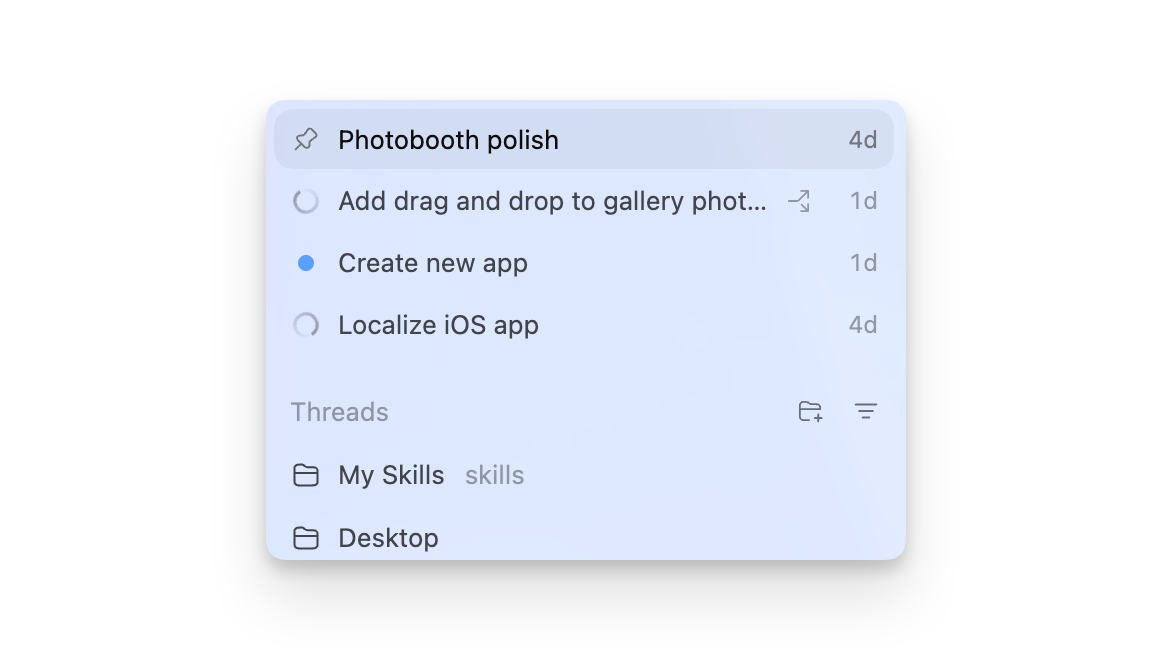
使用一个 Codex app window 在多个 projects 中运行 tasks。为每个 codebase 添加一个 project,并按需在它们之间切换。
当你的 Codex desktop app 中可用时,你可以让 Codex 管理本地 projects 或 worktrees 中的 threads。例如,让它查找相关 thread、继续现有 thread,或 pin/archive thread。要创建单独的 background thread,请明确提出这个请求:Create a separate background thread in a worktree for this project to update the tests。
如果你使用过 Codex CLI,可以把 project 理解为在特定 directory 中启动 session。
如果你在一个 repository 中处理两个或更多 apps 或 packages,请把不同 projects 拆成单独的 app projects,这样 sandbox 只包含该 project 的 files。
Skills support
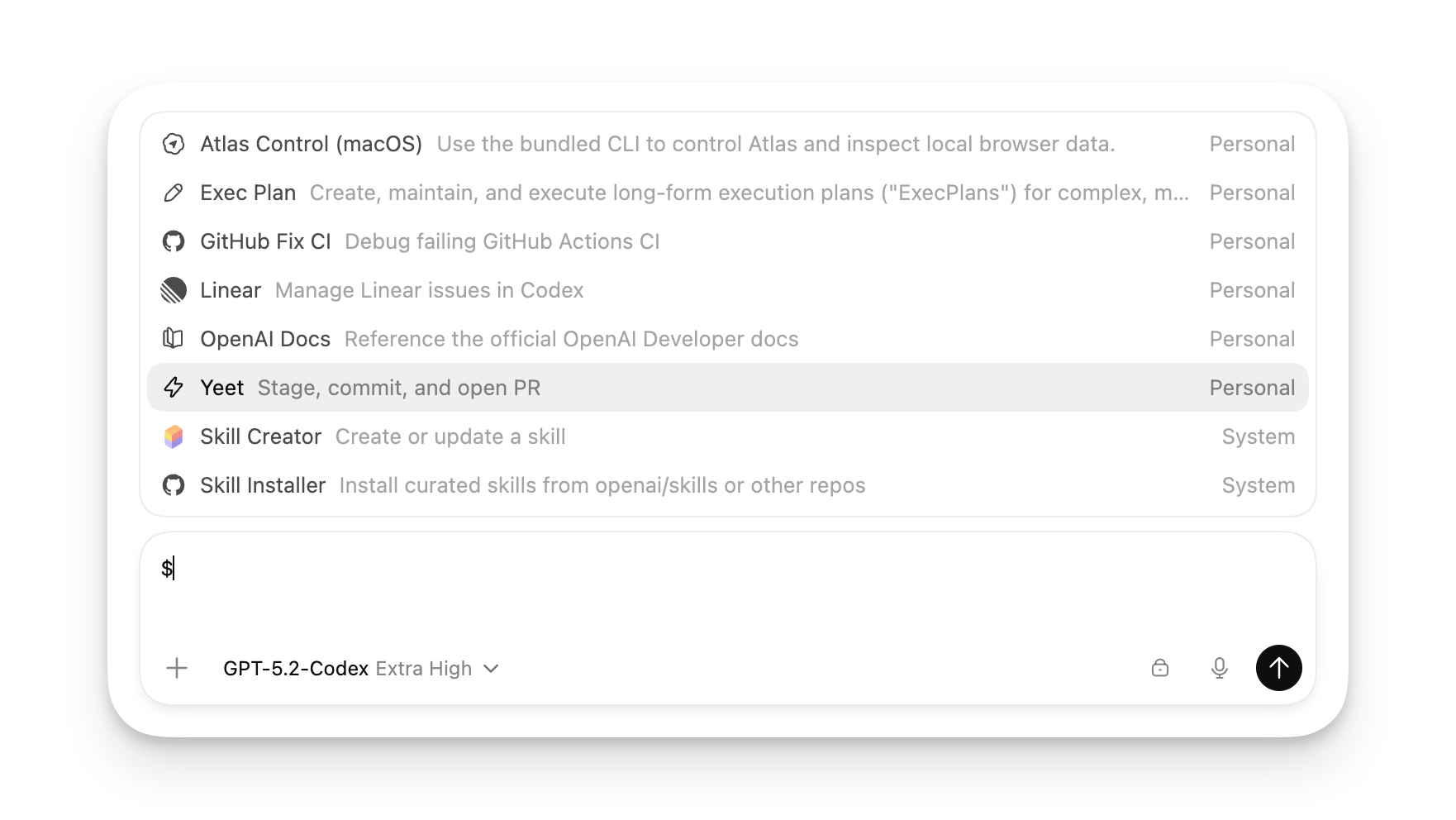
Codex app 支持与 CLI 和 IDE Extension 相同的 agent skills。你也可以点击 sidebar 中的 Skills,查看并探索团队在不同 projects 中创建的新 skills。
Automations
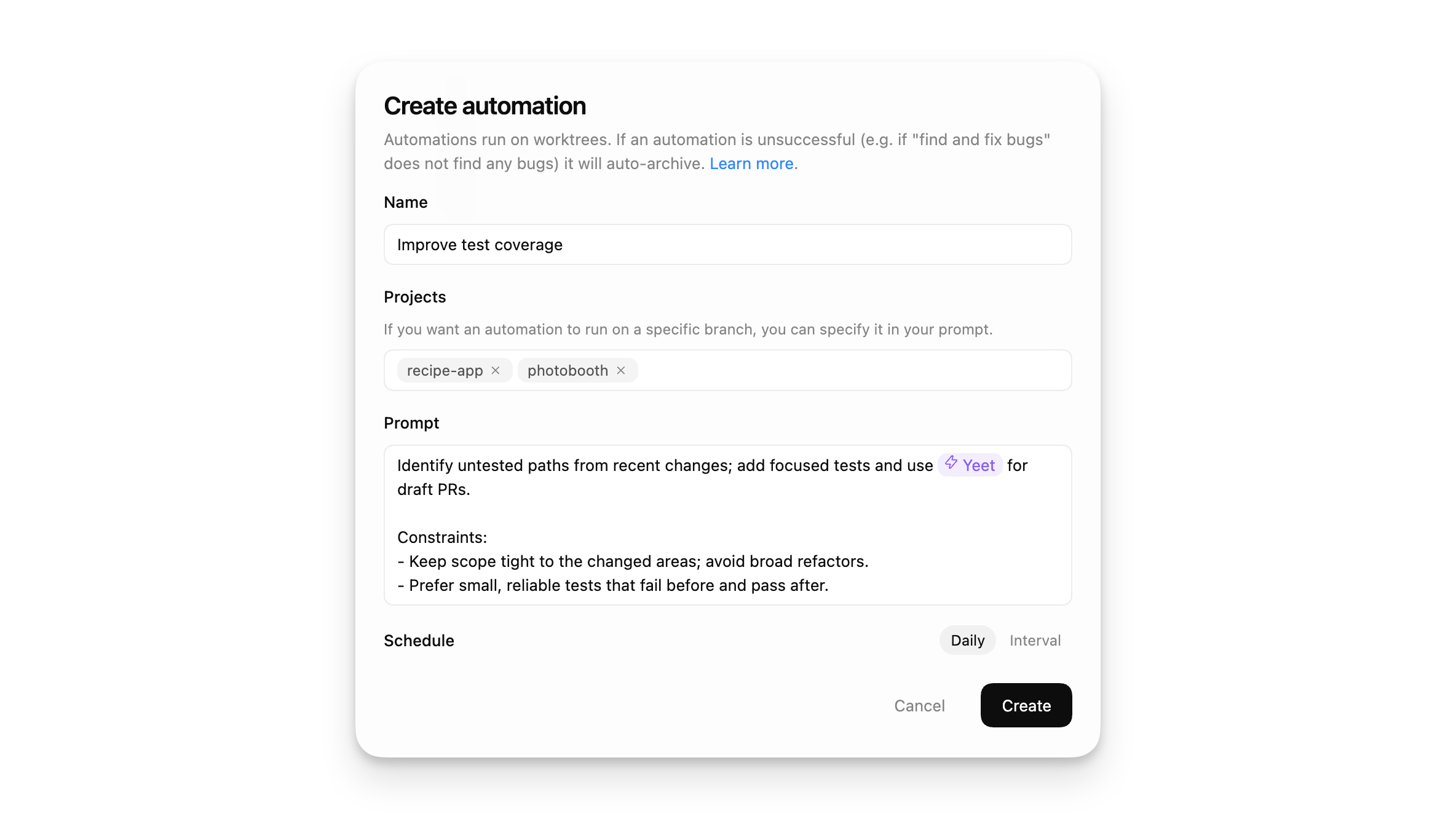
你也可以把 skills 与 automations 结合,用来执行 routine tasks,例如评估 telemetry 中的 errors 并提交 fixes,或基于最近的 codebase changes 创建 reports。对于应该停留在同一个 thread 中的 ongoing work,请使用 thread automation。
Modes
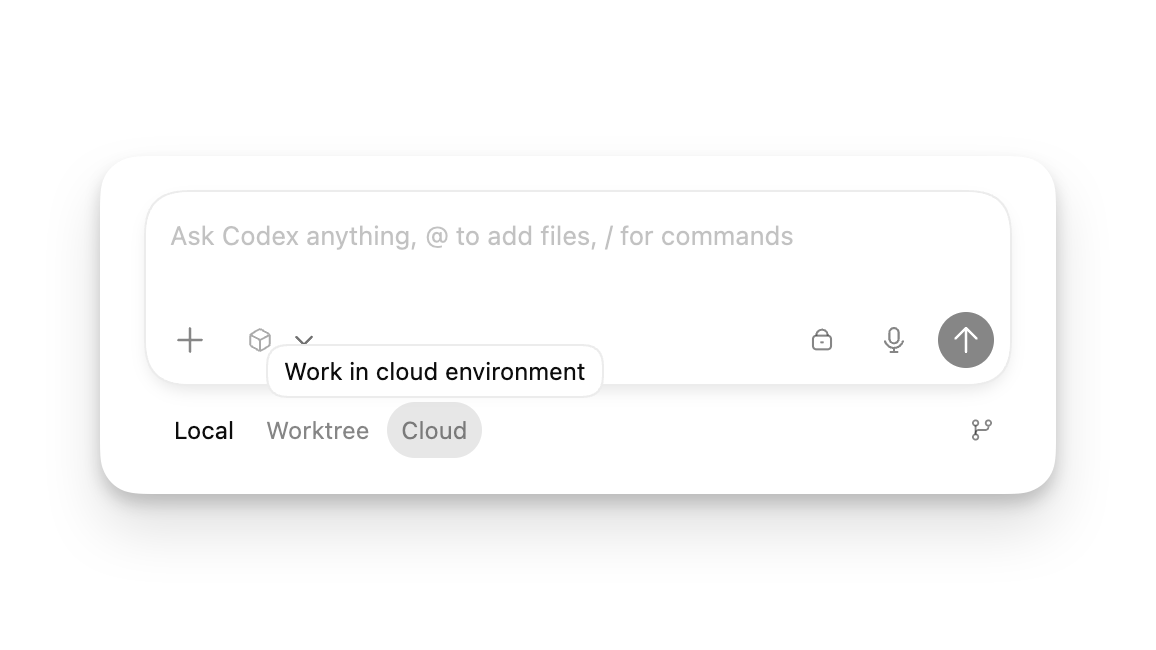
每个 thread 都在选定的 mode 中运行。启动 thread 时,你可以选择:
Local:直接在当前 project directory 中工作。
Worktree:在 Git worktree 中隔离 changes。了解更多。
Cloud:在配置好的 cloud environment 中远程运行。
Local 和 Worktree threads 都会在你的 computer 上运行。
完整 glossary 和 concepts 请查看 concepts section。
内置 Git tools
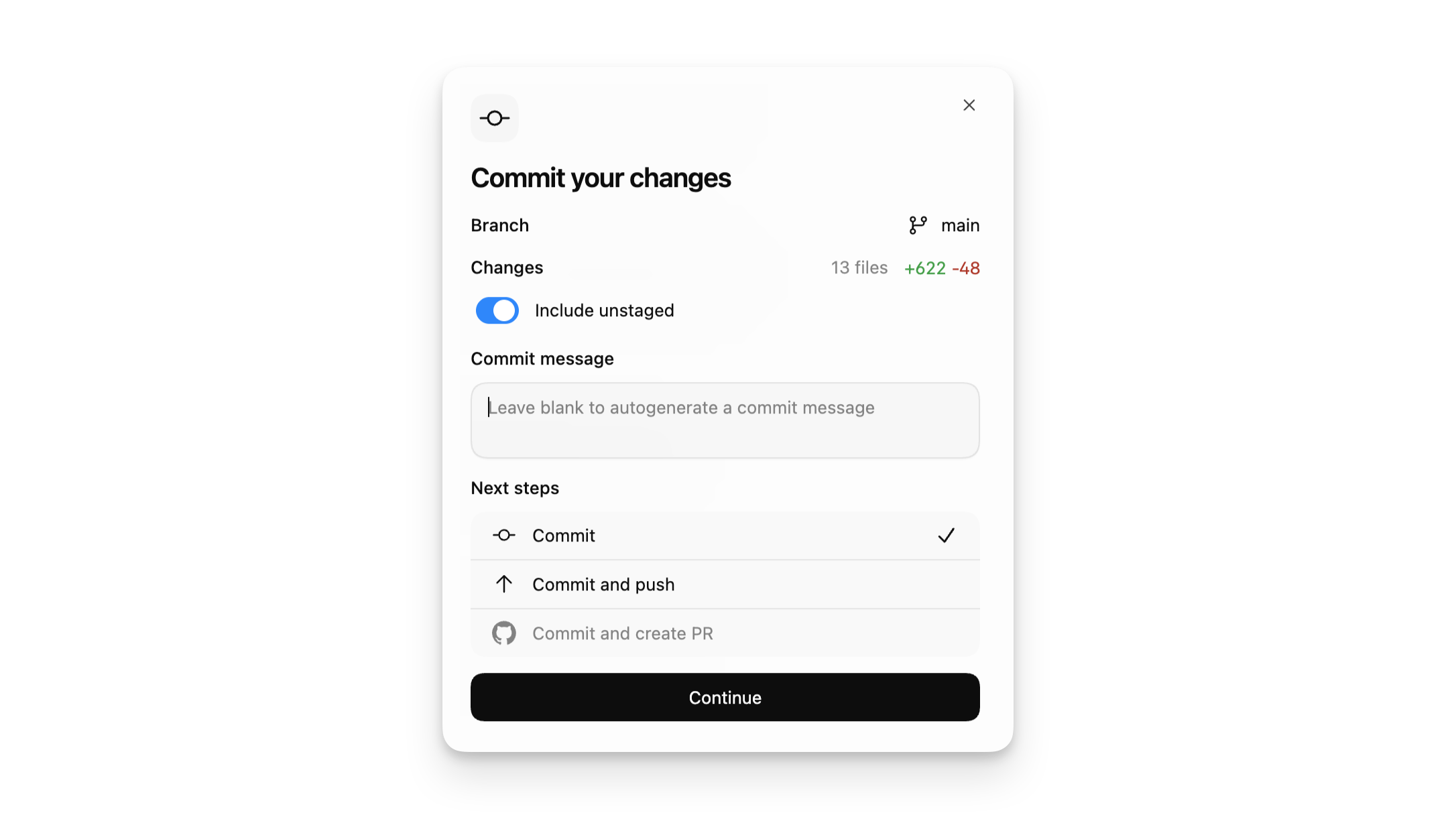
Codex app 直接在 app 内提供常见 Git features。
diff pane 会显示你在 local project 或 worktree checkout 中 changes 的 Git diff。你也可以添加 inline comments 让 Codex 处理,并 stage 或 revert 特定 chunks 或整个 files。
你也可以直接在 Codex app 中为 Local 和 Worktree tasks commit、push 并创建 pull requests。
对于更高级的 Git tasks,请使用 integrated terminal。
Worktree support
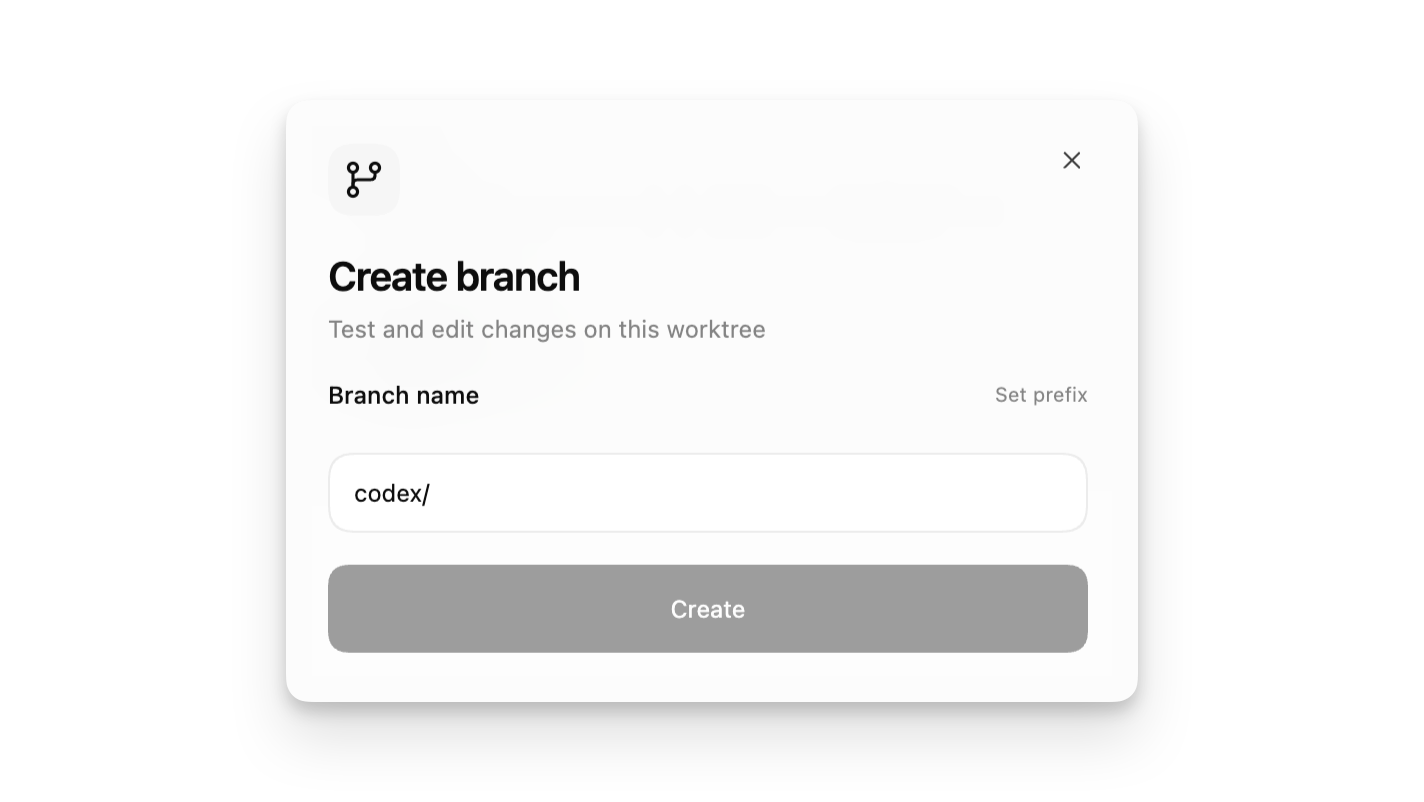
创建 new thread 时,选择 Local 或 Worktree。Local 会直接在你的 project 中工作。Worktree 会创建新的 Git worktree,让 changes 与你的常规 project 保持隔离。
当你想尝试新想法但不触碰当前工作,或想让 Codex 在同一个 project 中并行运行独立 tasks 时,请使用 Worktree。
对于 Git repositories,automations 会在 dedicated background worktrees 中运行;对于没有 version control 的 projects,则直接在 project directory 中运行。
Integrated terminal
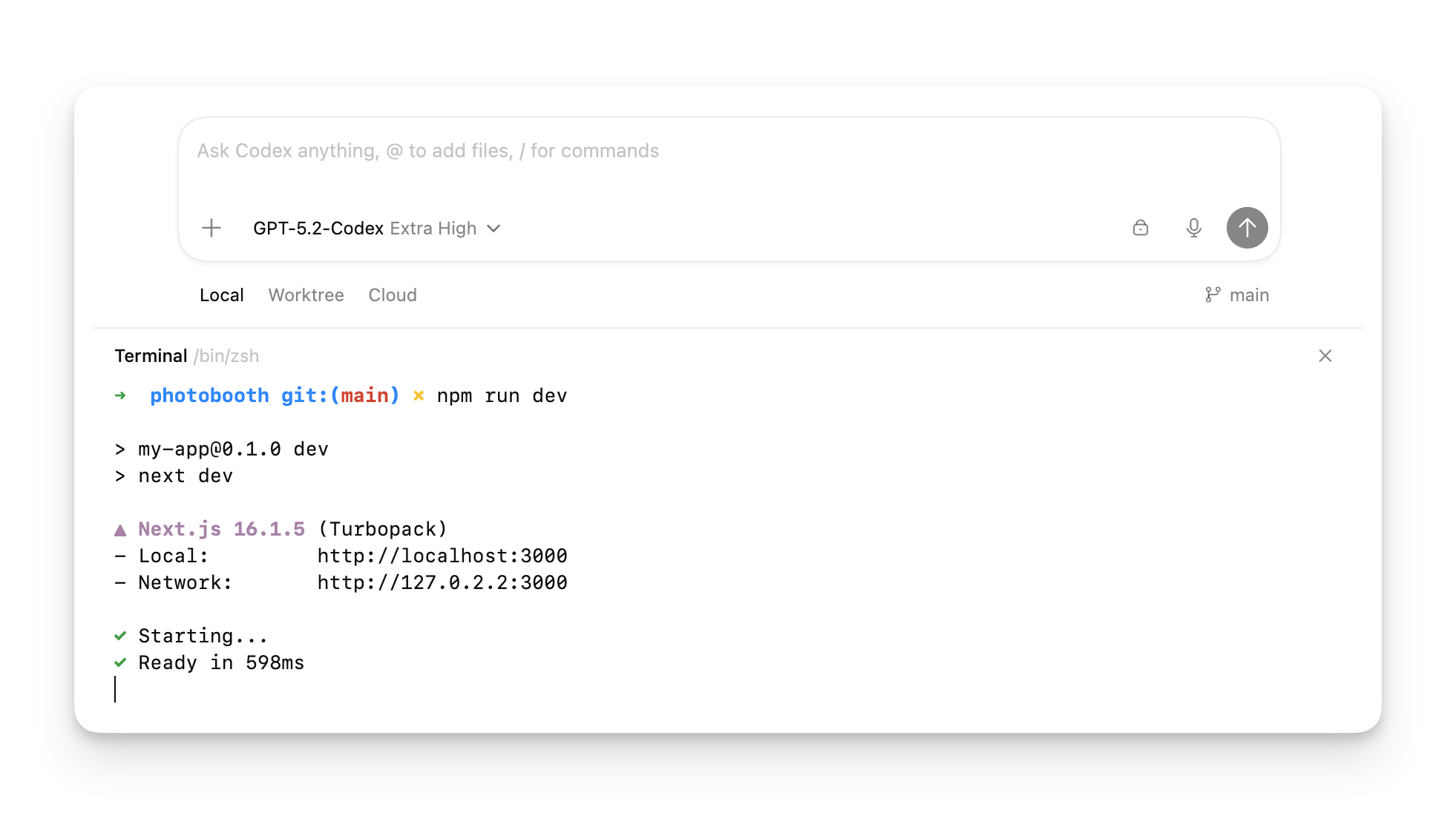
每个 thread 都包含一个 built-in terminal,作用域限定在当前 project 或 worktree。你可以使用 app 右上角的 terminal icon 切换它,或按 Cmd+J。
使用 terminal 验证 changes、运行 scripts,并在不离开 app 的情况下执行 Git operations。Codex 还可以读取当前 terminal output,因此它能检查正在运行的 development server 状态,或在与你协作时回看失败的 build。
常见 tasks 包括:
git status
git pull --rebase
pnpm test 或 npm test
pnpm run lint 或类似 project commands
如果你经常运行某个 task,可以在 local environment 中定义一个 action,为 Codex app window 顶部添加 shortcut button。
注意,Cmd+K 会打开 Codex app 中的 command palette;它不会清空 terminal。要清空 terminal,请使用 Ctrl+L。
Native Windows sandbox
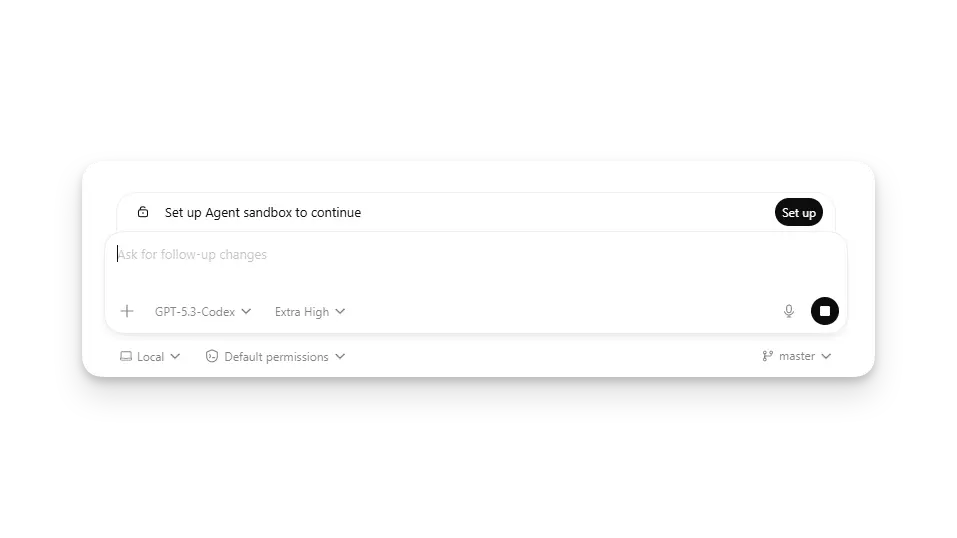
在 Windows 上,Codex 可以在 PowerShell 中以 native Windows sandbox 原生运行,而不需要 WSL 或 virtual machine。这让你可以留在 Windows-native workflows 中,同时保持 bounded permissions。
Voice dictation
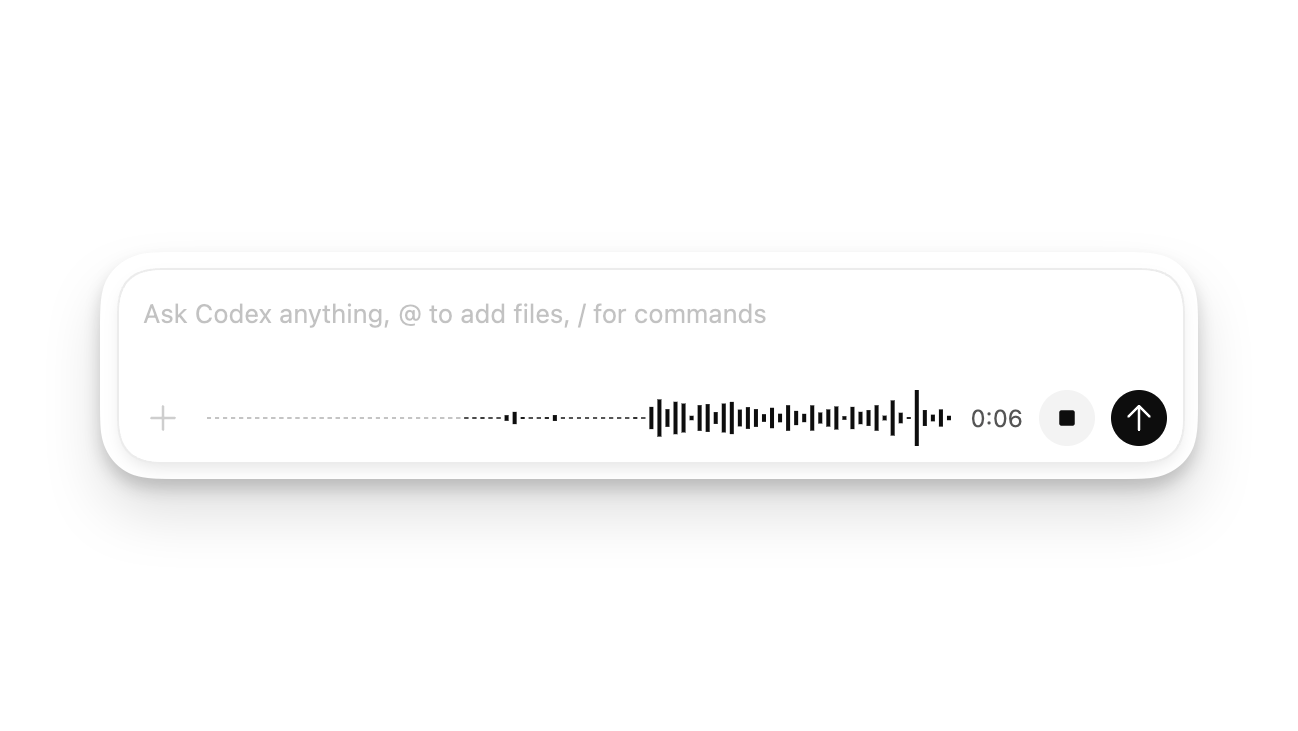
使用你的 voice 来 prompt Codex。在 composer 可见时按住 Ctrl+M 并开始说话,你的 voice 会被转录。你可以编辑转录后的 prompt,或直接发送让 Codex 开始工作。
Floating pop-out window
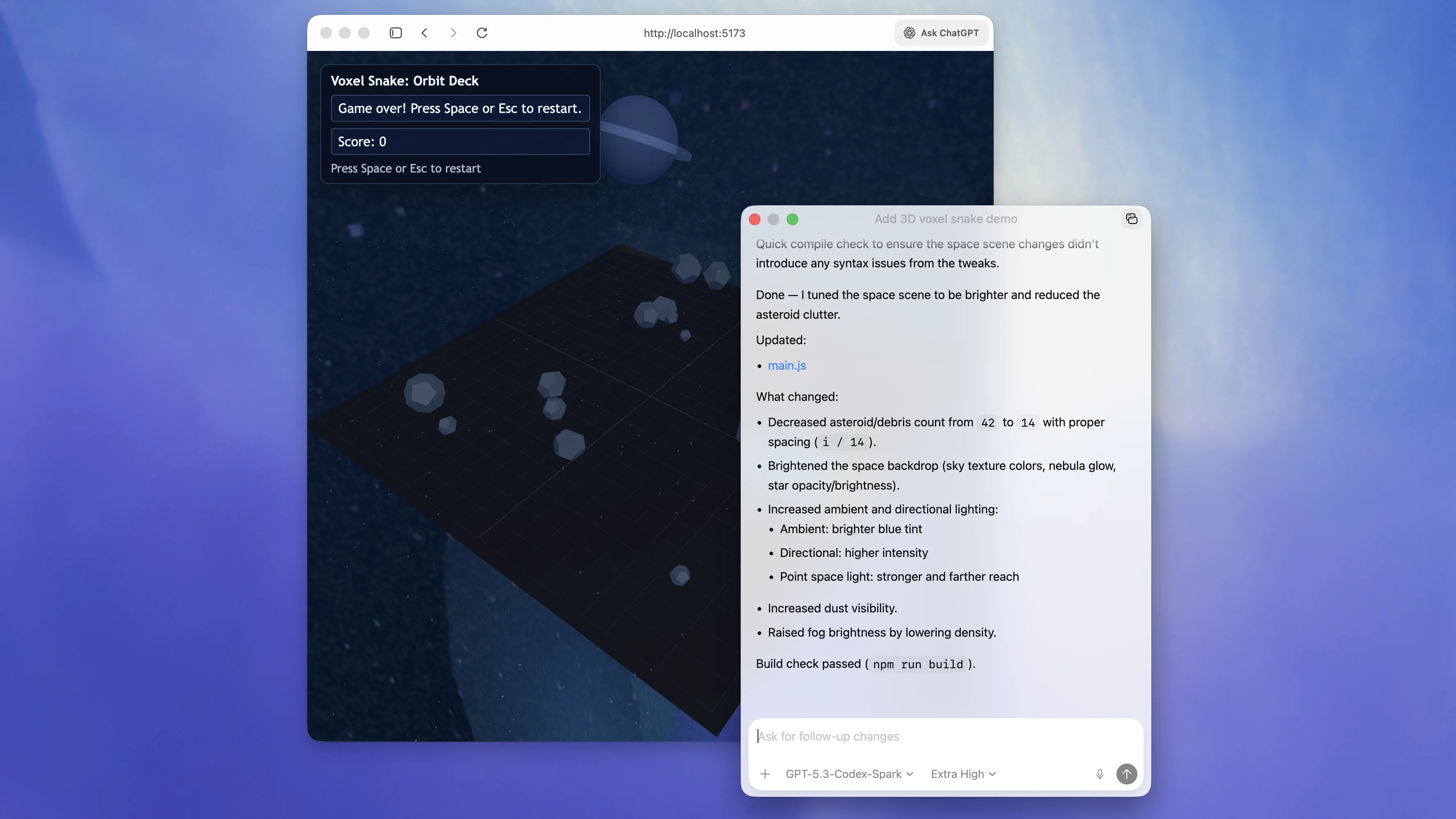
把 active conversation thread 弹出到单独 window,并移动到你正在工作的地方。这很适合 front-end work,你可以在快速迭代时把 thread 放在 browser、editor 或 design preview 附近。
你也可以把 pop-out window 切换为 stay on top,让它在 workflow 中持续可见。
In-app browser
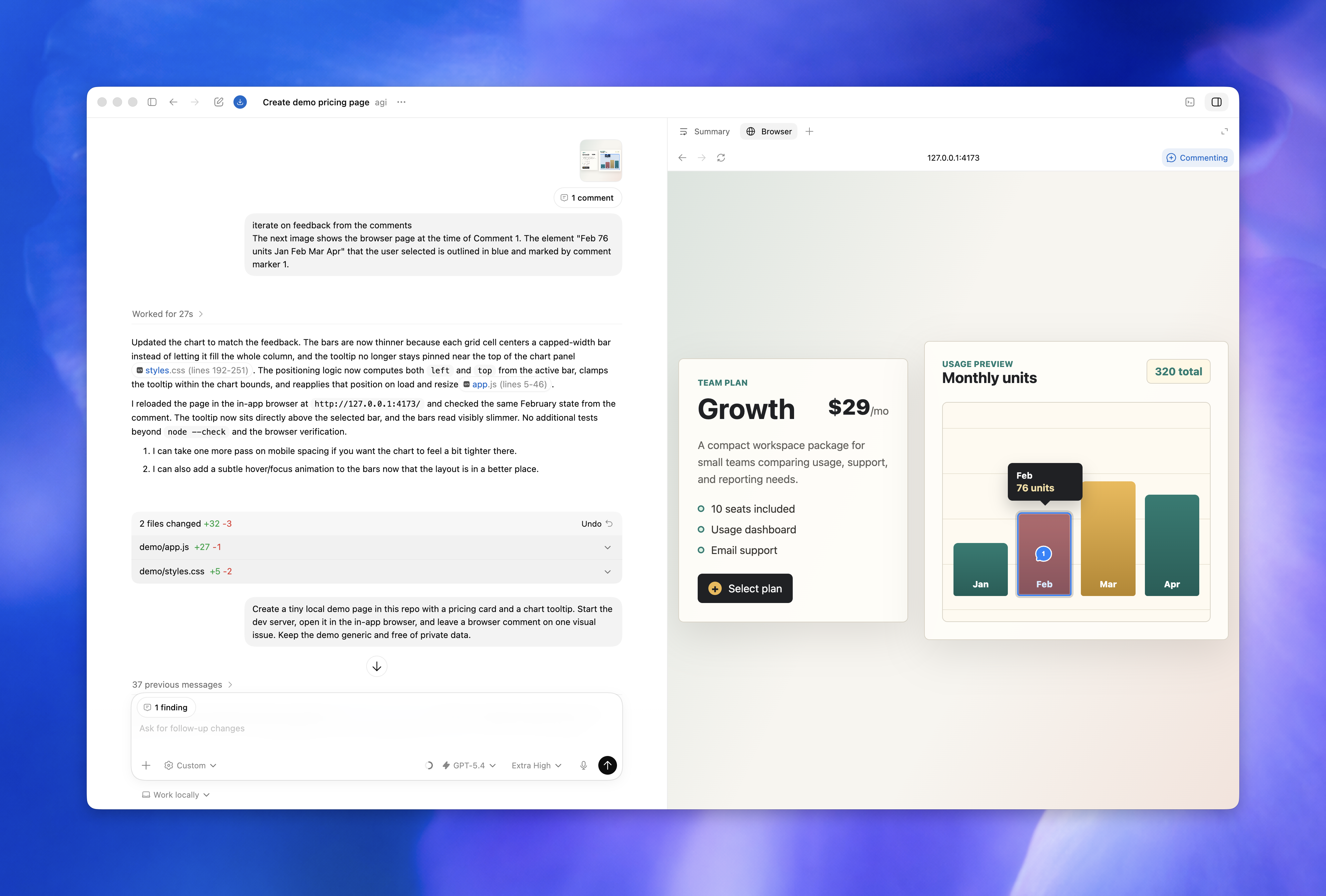
使用 in-app browser 预览、review 并 comment local development servers、file-backed previews,以及不需要 sign-in 的 public pages,让你在迭代 web app 时保持上下文。
in-app browser 不支持 authentication flows、signed-in pages、你的常规 browser profile、cookies、extensions 或 existing tabs。
使用 browser comments 标记页面上的特定 elements 或 areas,然后让 Codex 处理这些 feedback。
当你希望 Codex 直接操作页面时,请对 local development servers 和 file-backed pages 使用 browser use。你可以在 settings 中管理 Browser plugin、allowed websites 和 blocked websites。
Computer use
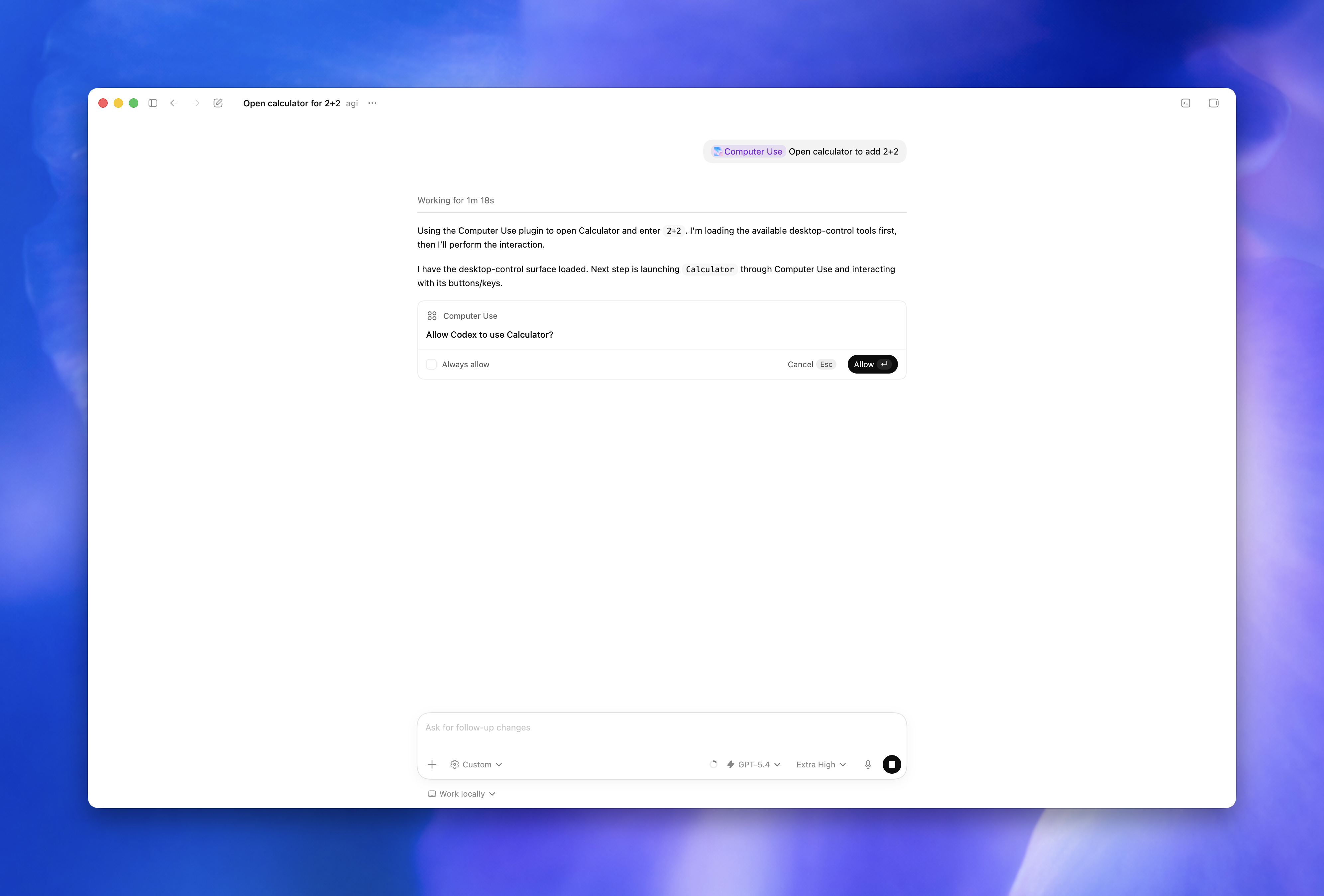
Computer use 通过看、点击和输入,帮助 Codex 操作 macOS 或 Windows app。这适用于 testing desktop apps、检查 browser 或 simulator flows、处理 plugins 无法访问的数据源、更改 app settings,以及复现 GUI-only bugs。
由于 computer use 可能影响 project workspace 之外的 app 和 system state,请保持 tasks 范围较窄,并在继续前 review permission prompts。
处理 non-code artifacts
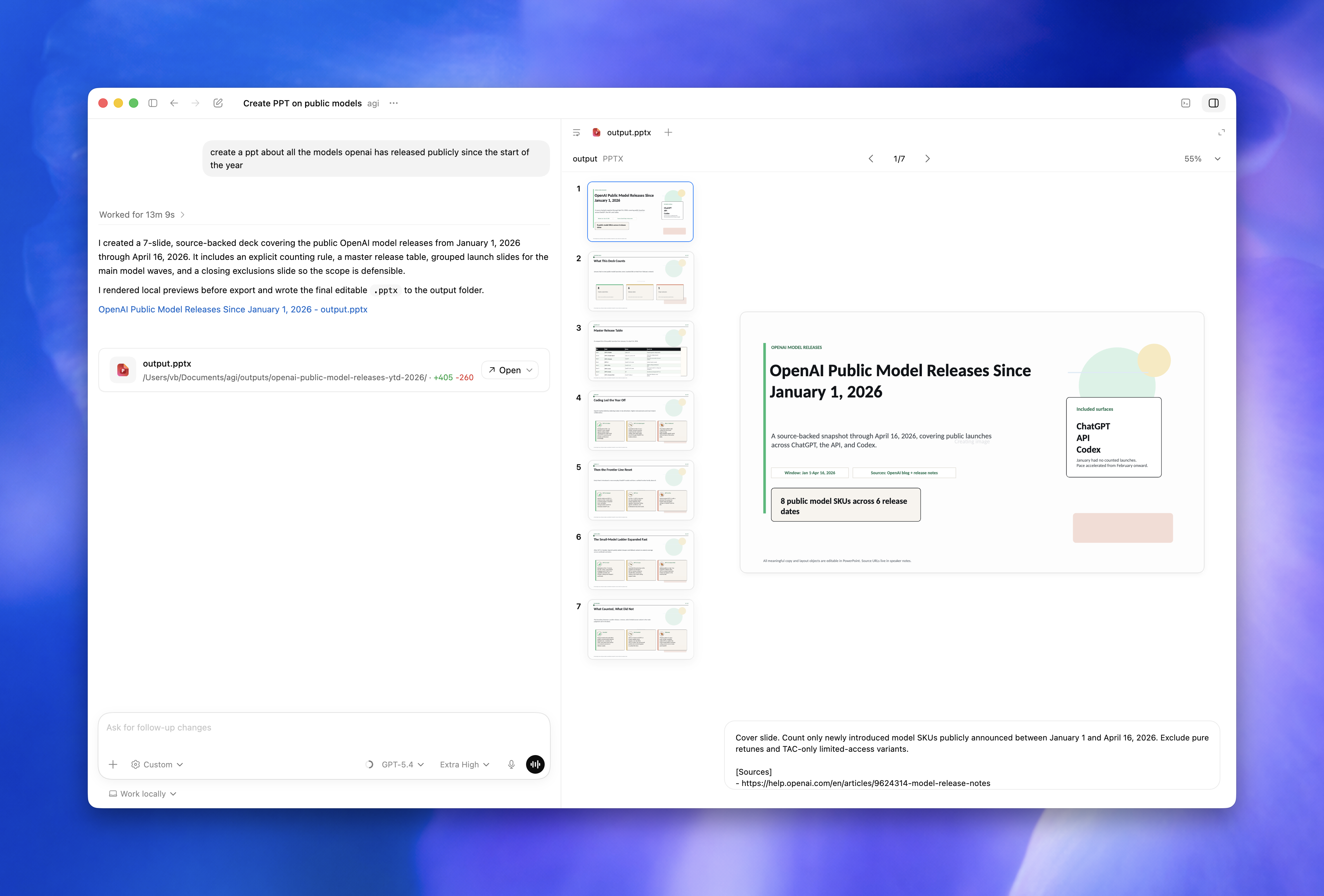
当 task 产生 non-code artifacts 时,sidebar 可以 preview PDF files、spreadsheets、documents 和 presentations。请向 Codex 提供 source data、期望的 file type、structure,以及你关心的 review criteria。
对于 spreadsheets 和 presentations,请描述重要的 sheets、columns、charts、slide sections 和 checks。让 Codex 说明它把 output 保存在哪里,以及它如何检查了结果。
使用 task sidebar 跟踪 Codex 在 thread 运行时正在做什么。它可以显示 agent plan、sources、generated artifacts 和 task summary,让你能够引导工作、检查生成文件,并决定哪些内容需要再迭代。
与 IDE extension 同步
如果你在 editor 中安装了 Codex IDE Extension,并且 Codex app 与 IDE Extension 位于同一个 project 中,它们会自动同步。
同步后,你会在 Codex app composer 中看到 IDE context option。启用 “Auto context” 后,Codex app 会跟踪你正在查看的 files,因此你可以间接引用它们(例如 “What’s this file about?”)。你也可以在 IDE Extension 中看到 Codex app 内运行的 threads,反之亦然。
如果你不确定 app 是否包含 context,请关闭它并再次提出同一个问题,对比结果。
Thread automations
Automations 也可以附加到单个 thread。这些 thread automations 是 recurring wake-up calls,会保留 thread 的 context,让 Codex 可以检查 long-running work、轮询 source 获取新信息,或继续 follow-up loop。对于需要按计划不断回到同一个 conversation 的 heartbeat-style automations,请使用它们。
当下一次运行依赖当前 conversation 时,请使用 thread automation。当你希望 Codex 为一个或多个 projects 启动 fresh recurring task 时,请使用 standalone 或 project automation。
Approvals 和 sandboxing
你的 approval 和 sandbox settings 会约束 Codex actions。
Approvals 决定 Codex 何时在运行 command 前暂停并请求 permission。
Sandbox 控制 Codex 可以使用哪些 directories 和 network access。
当你看到 “approve once” 或 “approve for this session” 这样的 prompts 时,你是在为 tool execution 授予不同 scope 的 permission。如果你不确定,请批准最窄的选项并继续迭代。
默认情况下,Codex 会把 work 限定在当前 project 中。在大多数情况下,这是合适的约束。
如果你的 task 需要跨多个 repository 或 directory 工作,优先打开 separate projects 或使用 worktrees,而不是要求 Codex 在 project root 之外自由访问。
如果你的 workspace 中提供 automatic review,可以从 permissions selector 中选择它。它保持相同的 sandbox boundary,但会把符合条件的 approval requests 路由到配置好的 review policy,而不是等待你处理。
高层 overview 请参见 sandboxing。配置细节请参见 agent approvals & security documentation。
MCP support
Codex app、CLI 和 IDE Extension 共享 Model Context Protocol (MCP) settings。如果你已经在其中一个界面配置了 MCP servers,其他界面会自动采用。要配置 new servers,请打开 app settings 中的 MCP section,并启用 recommended server 或向 configuration 添加 new server。
Web search
Codex 内置 first-party web search tool。对于 Codex app 中的 local tasks,Codex 默认启用 web search,并从 web search cache 提供结果。如果你把 sandbox 配置为 full access,web search 默认使用 live results。请参见 Config basics 来 disable web search,或切换到会获取最新数据的 live results。
Image generation
你可以让 Codex 直接在 thread 中生成或编辑 images。这适用于 UI assets、banners、backgrounds、illustrations、sprite sheets,以及你想与 code 一起创建的 placeholders。当你希望 Codex transform 或 extend 现有 asset 时,请添加 reference image。
你可以用 natural language 提出请求,或在 prompt 中包含 $imagegen 来显式调用 image generation skill。
内置 image generation 使用 gpt-image-2,会计入你的 general Codex usage limits,并且平均会以不使用 image generation 的类似 turns 的 3-5 倍速度消耗 included limits,具体取决于 image quality 和 size。详情请参见 Pricing。Prompting tips 和 model details 请参见 image generation guide。
对于更大批量的 image generation,请在 environment variables 中设置 OPENAI_API_KEY,并让 Codex 通过 API 生成 images,这样会适用 API pricing。
Image input
你可以把 images 拖放到 prompt composer 中,把它们作为 context。拖放 image 时按住 Shift,可将 image 添加到 context。
你也可以通过给 Codex 提供 tools 来截取你正在处理的 app,让 Codex 查看你系统上的 images,从而验证它正在做的工作。
Chats
Chats 是你在 task 不需要特定 project folder 或 Git repository 时可以启动的 threads。它们适合 research、triage、planning、plugin-heavy workflows,以及其他希望 Codex 使用 connected tools 而不是编辑 codebase 的 conversations。
Chats 使用 Codex home 下由 Codex-managed threads directory 作为工作位置。默认情况下,该位置是 ~/.codex/threads。
Memories
Memories(可用时)让 Codex 把过去 tasks 中有用的 context 带入未来 threads。它们最适合 stable preferences、project conventions、recurring work patterns,以及原本需要反复说明的 known pitfalls。
Notifications
默认情况下,当 task 完成或 app 在 background 中需要 approval 时,Codex app 会发送 notifications。
在 Codex app settings 中,你可以选择 never send notifications,或 always send notifications,即使 app 当前处于 focus 状态。
让 computer 保持唤醒
由于你的 tasks 可能需要一段时间才能完成,你可以在 app settings 中启用 “Prevent sleep while running” toggle,让 Codex app 阻止 computer 进入睡眠。