Codex Chrome extension 让 Codex 可以为需要 signed-in browser state 的 browser tasks 使用 Chrome。当 Codex 需要读取或操作 LinkedIn、Salesforce、Gmail 或 internal tools 等网站时使用它。
对于 local development servers、file-backed previews,以及不需要 sign-in 的 public pages,请优先使用 in-app browser。in-app browser 会把 preview 和 verification work 留在 Codex 内部,而不使用你的 Chrome profile。
Codex 也可以根据 task 需要在 tools 之间切换:有 dedicated integration 时使用 plugins,需要 logged-in browser context 时使用 Chrome,处理 localhost 时使用 in-app browser。
从 Plugins 设置 Chrome
从 Codex 设置 extension:
打开 Codex 并进入 Plugins。
添加 Chrome plugin。
按照 setup flow 操作。它会引导你安装 Codex Chrome extension,并批准 Chrome 的 permission prompts。
打开 Chrome,并确认 Codex extension 显示 Connected。
plugin setup 完成后,启动一个新的 Codex thread。当 task 需要 signed-in website 时,Codex 可以建议使用 Chrome。你也可以在 prompt 中直接调用它:
@Chrome open Salesforce and update the account from these call notes.如果 Chrome 尚未打开,Codex 可以打开它。Chrome browser tasks 会在 Chrome tab groups 中运行,这样某个 thread 的工作会保持分组。
控制 website access
默认情况下,Codex 在与每个新 website 交互前都会询问。Codex 会基于 website host 发起 prompt,例如 example.com。
当 Codex 请求使用某个 website 时,你可以根据 task 和自己的 risk tolerance 选择对应选项:
Allow the website for the current chat。
Always allow the host,让 Codex 后续无需询问即可再次使用该 website。
Decline the website。
管理 allowlist 和 blocklist
在 Computer Use settings 中,你可以管理 domains 的 allowlist 和 blocklist。allowlist 包含 Codex 可以无需再次询问就使用的 domains。blocklist 包含 Codex 不应使用的 domains。
从 allowlist 移除 domain 意味着 Codex 使用前会再次询问。从 blocklist 移除 domain 意味着 Codex 可以再次请求使用它,而不是直接把该 domain 视为 blocked。
Always allow browser content Elevated Risk
如果你打开 always allow browser content,Codex 使用 websites 前将不再请求确认。
Browser history Elevated Risk
Browser history 可能包含 sensitive telemetry、internal URLs、search terms,以及来自已登录设备上 Chrome sessions 的 activity。如果你允许 Codex 访问 browser history,相关 history entries 可能会成为 Codex 用于 task 的 context 的一部分。恶意或误导性的 page content 会增加 Codex 将这些 data 复制到非预期位置的风险。
当 Codex 想使用 browser history 时会询问。Codex 会把 history access 限定在该 request 内,并且 history 没有 always-allow 选项。
Data and security
Chrome extension permissions
安装 extension 时,Chrome 会要求你接受 extension permissions。permission prompt 可能包括:
Access the page debugger
Read and change all your data on all websites
Read and change your browsing history on all your signed-in devices
Display notifications
Read and change your bookmarks
Manage your downloads
Communicate with cooperating native applications
View and manage your tab groups
这些 Chrome permissions 让 extension 能够操作 browser workflows。Codex 在 task 期间使用 websites 或 browser history 前,仍会使用自己的 confirmations、settings、allowlists 和 blocklists。
Memories
Browser use 遵循你的 Codex Memories setting。如果 Memories 开启,Codex 在 Chrome 中工作时可以使用相关 saved memories。如果 Memories 关闭,browser use 不会使用 memories。
OpenAI 会存储哪些 browsing 内容
OpenAI 不会从 extension 单独存储一份完整的 Chrome actions 记录。OpenAI 只在 browser activity 成为 Codex context 的一部分时存储它,例如 Codex 从页面读取的 text、screenshots、tool calls、summaries、messages,或 thread 中包含的其他 content。
你的 ChatGPT 和 Codex data controls 适用于在 context 中处理的 content。除非 browser tasks 必须使用 secrets 或 highly sensitive data,并且你在场 review 每个 prompt,否则请避免发送这些内容。
Troubleshooting
如果 Codex 无法连接到 Chrome,请先确认 Codex 尝试访问的 website 没有在 Settings 的 blocklist 中。如果 website 未被 blocked,请按以下 checks 排查:
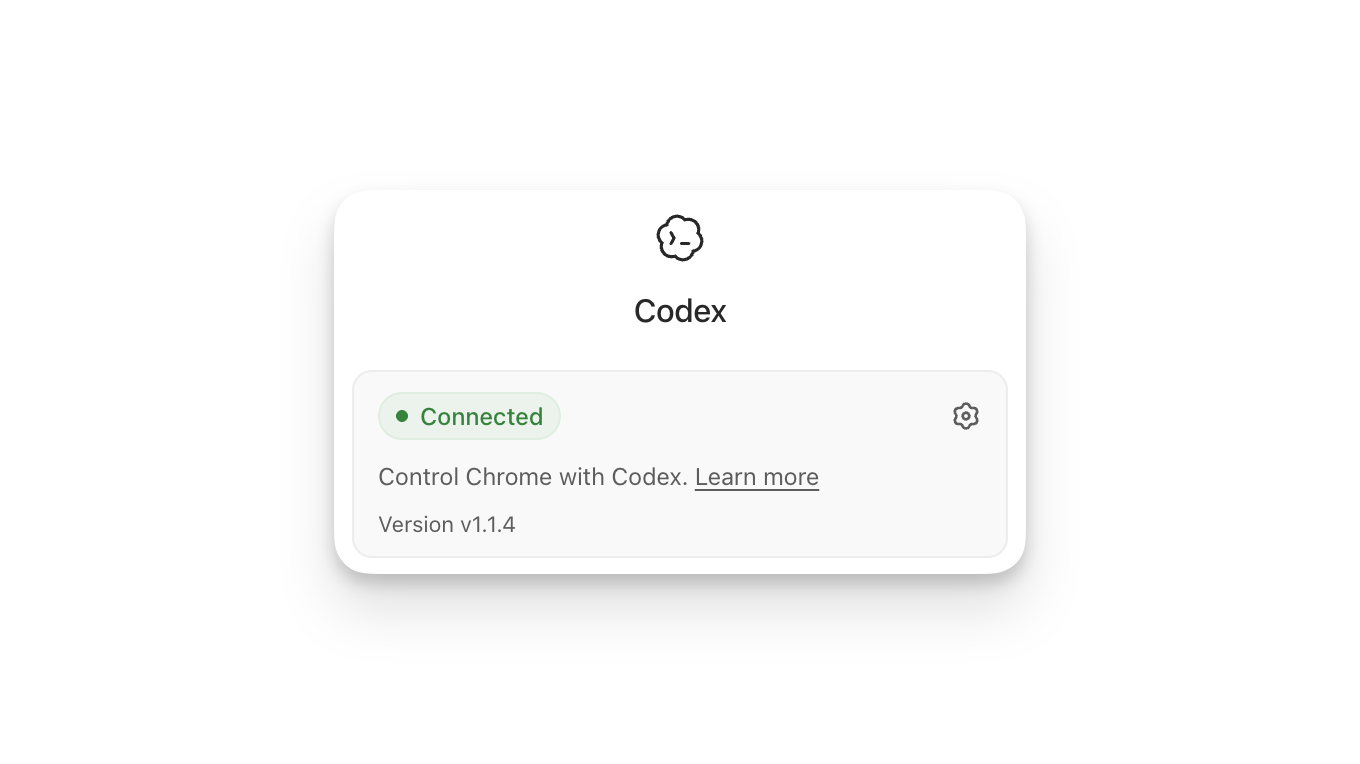
从 Chrome toolbar 或 Chrome extensions menu 打开 Codex extension。确保它显示 Connected。如果它显示 disconnected,或提到 missing native host,请从 Codex 的 Plugins 中移除并重新添加 Chrome plugin,然后再次按照 setup flow 操作。
在 Codex 中打开 Plugins,确认 Chrome plugin 已开启。如果 plugin 关闭,请打开它并再次尝试 task。
确保你使用的是安装了 Codex extension 的同一个 Chrome profile。如果你使用多个 Chrome profile,请在 active profile 中安装并启用 extension。
启动一个新的 Codex thread,并再次尝试 Chrome task。这可以清除 thread-specific connection state。
重启 Chrome 和 Codex,然后重试。如果 extension 仍无法连接,请卸载 Codex Chrome extension,从 Plugins 中移除并重新添加 Chrome plugin,然后再次按照 setup flow 操作。
如果 extension 显示 Connected,但 Codex 仍无法使用 Chrome,请在 Codex app 中运行 /feedback,并在联系 support 时包含 thread ID。
Upload Files
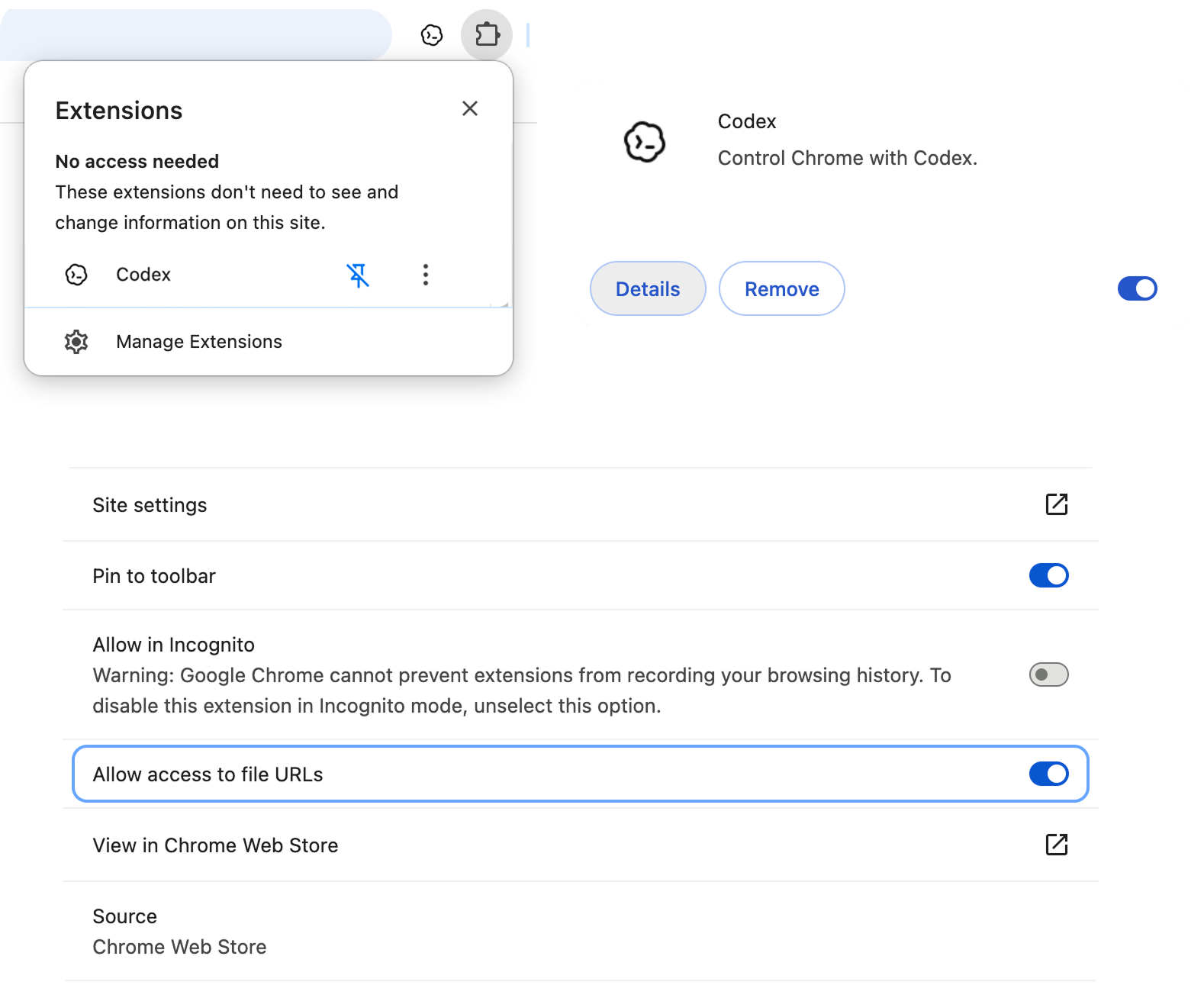
如果 Chrome task 需要从你的 computer 上传 file,请允许 Codex extension 在 Chrome 中访问 file URLs:
在 Chrome 中打开 toolbar 里的 extensions icon,然后点击 Manage Extensions。
在 Codex extension card 上点击 Details。
打开 Allow access to file URLs。
更改 setting 后,再次启动 Chrome task。