在 supported regions 中,Codex app 的 computer use 可用于 macOS 和 Windows。请安装 Computer Use plugin。在 macOS 上,根据提示授予 Screen Recording 和 Accessibility permissions。
通过 computer use,Codex 可以看到并操作 macOS 或 Windows 上的 graphical user interfaces。对于 command-line tools 或 structured integrations 不够用的 tasks,请使用它,例如检查 desktop app、使用 browser、更改 app settings、处理 plugin 不可用的数据源,或复现只发生在 graphical user interface 中的 bug。
由于 computer use 可能影响 project workspace 之外的 app 和 system state,请将它用于 scoped tasks,并在继续前 review permission prompts。
设置 computer use
在 Codex settings 中打开 Computer Use,并点击 Install 安装 Computer Use plugin,然后再要求 Codex 操作 desktop apps。在 Windows 上,task 运行时请保持 target app 在 active desktop 上可见。在 macOS 上,根据提示授予 Screen Recording 和 Accessibility permissions,让 Codex 能看到并与 target app 交互。
在 macOS 上,请授予:
Screen Recording permission,让 Codex 可以看到 target app。
Accessibility permission,让 Codex 可以 click、type 和 navigate。
何时使用 computer use
当 task 依赖 graphical user interface,而仅靠 files 或 command output 很难验证时,请选择 computer use。
适合的情况包括:
测试 Codex 正在构建的 macOS app、Windows app、iOS simulator flow 或其他 desktop app。
执行需要你的 web browser 的 task。
复现只出现在 graphical interface 中的 bug。
更改需要通过 UI 点击的 app settings。
检查无法通过 plugin 获得的 app 或 data source 中的信息。
在 macOS 上,在你继续处理其他事情时,让 scoped task 在 background 中运行。
执行横跨多个 apps 的 workflow。
对于你正在本地构建的 web apps,请优先使用 in-app browser。
Windows foreground use
在 Windows 上,computer use 会在 active desktop 上运行。它无法在你继续使用同一个 Windows session 时在 background 中操作,因此 task 运行时应预期 Codex 会移动 pointer、type,并接管 foreground。
对于你离开后仍应继续的 Windows tasks,请保持 Windows device unlocked 且 connected to the internet。使用 phone 上的 remote control 检查进度或发送 follow-up instructions,或在 Windows virtual machine 内运行 Codex app,让 computer use 接管 VM 而不是你的 main desktop。
启动 computer use task
在 prompt 中提到 @Computer 或 @AppName,或要求 Codex 使用 computer use。请描述 Codex 应操作的 exact app、window 或 flow。
Open the app with computer use, reproduce the onboarding bug, and fix the smallest code path that causes it. After each change, run the same UI flow again.Open @Chrome and verify the checkout page still works after the latest changes.如果 target app 暴露 dedicated plugin 或 MCP server,请优先使用这种 structured integration 来进行 data access 和 repeatable operations。当 Codex 需要视觉检查或操作 app 时,再选择 computer use。
Permissions 和 approvals
computer use 的 system permissions 与 Codex 中的 app approvals 是分开的。在 macOS 上,Screen Recording 和 Accessibility permissions 让 Codex 可以看到并操作 apps。App approvals 决定你允许 Codex 使用哪些 apps。File reads、file edits 和 shell commands 仍遵循该 thread 的 sandbox 和 approval settings。
通过 computer use,Codex 只能看到并操作你允许的 apps。在 task 期间,Codex 使用你 computer 上的 app 前会请求你的 permission。你可以选择 Always allow,让 Codex 以后无需再次询问即可使用该 app。你可以在 Codex settings 的 Computer Use section 中,从 Always allow list 移除 apps。
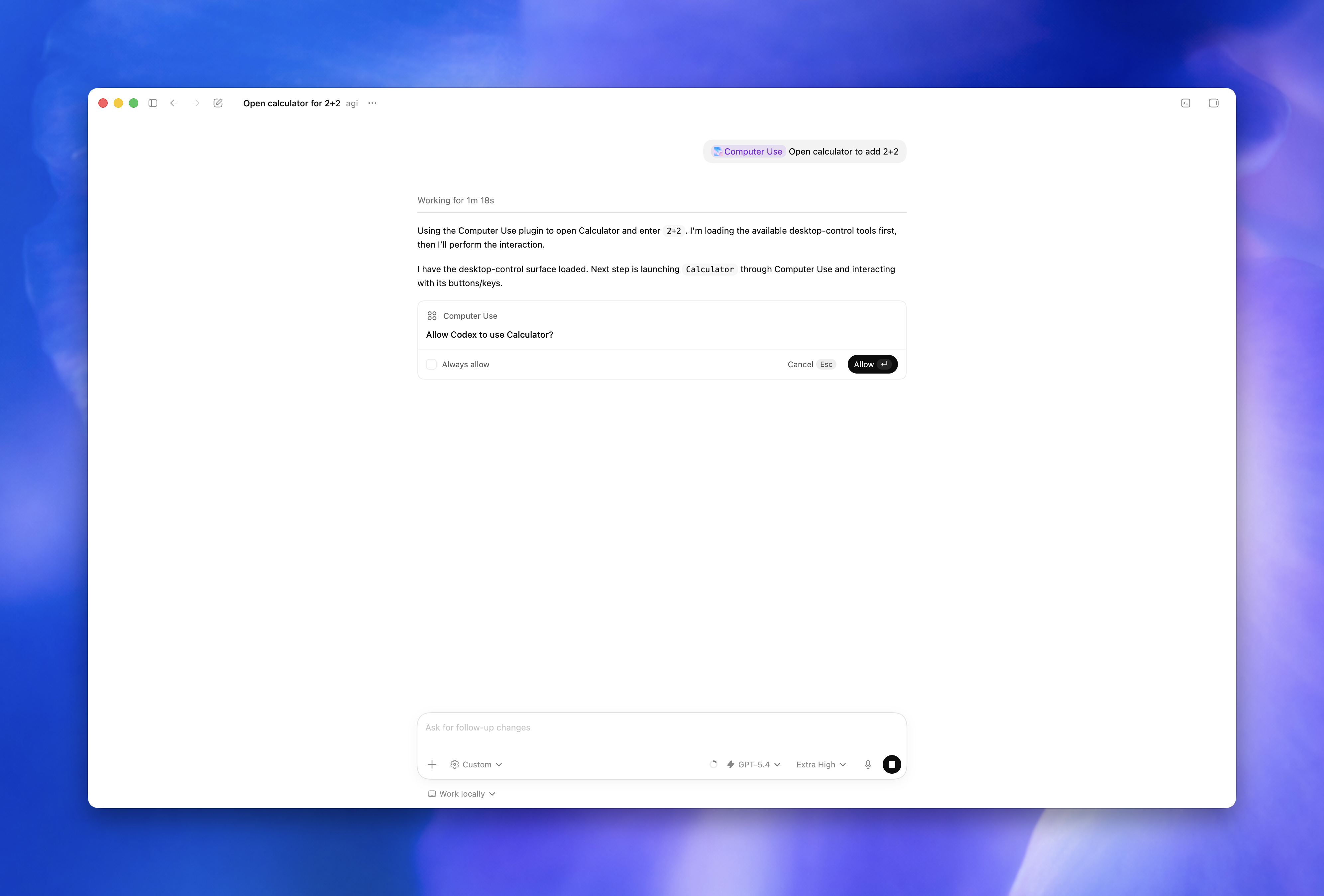
Codex 也可能在执行 sensitive 或 disruptive actions 前请求 permission。
如果 Codex 无法看到或控制 app,请在 macOS 上打开 System Settings > Privacy & Security,并检查 Codex app 的 Screen Recording 和 Accessibility。Windows 上,请确保 target app 在 active desktop session 中可见。
在 Windows 上,Computer Use 会把 persistent app decisions 存储在 $CODEX_HOME/computer-use/config.toml。列出 Computer Use 可以无需 prompt 打开的 apps,以及必须拒绝的 apps:
[apps]
allowed = ["mspaint.exe"]
denied = ["calc.exe"]
请使用 Windows Computer Use 报告的 app identifier,例如 desktop app 的 executable name,或 packaged app 的 app user model ID。Denied apps 优先于 allowed apps。对于未出现在任一 list 中的 apps,Codex 会提示。
这个 file 存储 local Computer Use decisions。它与 admin-enforced requirements.toml 是分开的,administrators 可在 requirements.toml 中用 [features].computer_use = false 禁用 Computer Use。
Locked use
Locked use 用于 macOS。在 Windows 上,computer use 在 foreground 中工作。
Locked computer use 让 Codex 可以在你的 Mac 锁定后使用 Computer Use,但前提是你已启用它。当 Codex task 需要在 Mac 锁定后从 connected device 使用 desktop apps 时使用它。
启用 locked computer use 时,Codex 会安装一个参与 macOS unlock flow 的 Apple authorization plug-in。
Locked use 有意保持范围很窄。它不是 Mac 的 general-purpose remote-unlock path,也不会让其他 apps 或 local processes 解锁 computer。
要使用 locked computer use:
打开 Codex settings > Computer Use。
启用 locked computer use。
在 Mac screen 锁定后,从 connected device 启动使用 computer use 的 task。
当 Codex task 在你的 Mac 锁定后通过 Computer Use 访问 app 时,Codex 会临时解锁 Mac,同时阻止 local use 并保留 locked screen protections。解锁前,Codex 会检查该 unlock attempt 是否用于 active、trusted computer use turn。在这个 short-lived window 之外,Codex 会拒绝 unlock,并在需要时要求你手动解锁。
Locked use 包含 safeguards:
authorization window 是 short-lived,并限定于当前 unlock attempt。
Automatic unlock 只在 active computer use turns 期间对 Codex 可用。
desktop 临时 unlocked 时,Codex 会覆盖每个 display。
如果 Codex 检测到 local keyboard 或 pointer input,它会重新锁定 Mac,并暂停 automatic unlock,直到你手动解锁。
Safety guidance
通过 computer use,Codex 可以查看 screen content、take screenshots,并与 target app 中的 windows、menus、keyboard input 和 clipboard state 交互。请把 visible app content、browser pages、screenshots,以及 target app 中打开的 files 视为 Codex 在 task 运行时可能处理的 context。
请让 tasks 保持 narrow,并在 sensitive flows 中 stay present:
一次只给 Codex 一个明确的 target app 或 flow。
你可以随时 stop task 或接管 computer。
除非 task 需要,否则保持 sensitive apps 关闭。
在 Windows 上,应预期 Codex 工作时会接管 foreground input;请使用 secondary device、VM,或在你自己使用该 desktop 前 stop task。
避免执行需要 secrets 的 tasks,除非你在场并可以 approve 每一步。
允许 Codex 使用 app 前,请 review app permission prompts。
只对你信任 Codex 将来自动使用的 apps 使用 Always allow。
对于 account、security、privacy、network、payment 或 credential-related settings,请 stay present。
如果 Codex 开始与错误 window 交互,请 cancel task。
如果 Codex 使用你的 browser,它可以与已登录的 pages 交互。请像你自己在操作一样 review website actions:web pages 可能包含 malicious 或 misleading content,sites 可能会把已批准的 clicks、form submissions 和 signed-in actions 视为来自你的 account。若要在 Codex 工作时继续使用 browser,请要求 Codex 使用不同的 browser。
此 feature 无法 automate terminal apps 或 Codex 本身,因为自动化它们可能绕过 Codex security policies。它也无法以 administrator 身份 authenticate,或 approve 你 computer 上的 security 和 privacy permission prompts。
File edits 和 shell commands 在适用时仍遵循 Codex approval 和 sandbox settings。通过 desktop apps 做出的 changes 可能要等到保存到 disk 且被 project 跟踪后,才会出现在 review pane 中。你的 ChatGPT data controls 适用于通过 Codex 处理的 content,包括 computer use 拍摄的 screenshots。