ChatGPT desktop app for Windows 提供一个 interface,用于跨 projects 工作、运行 parallel agent threads,并 review results。Windows app 支持 worktrees、automations、Git functionality、in-app browser、artifact previews、plugins 和 skills 等 core workflows。它可以使用 PowerShell 和 Windows sandbox 在 Windows 上 native 运行,也可以配置为在 Windows Subsystem for Linux 2 (WSL2) 中运行。
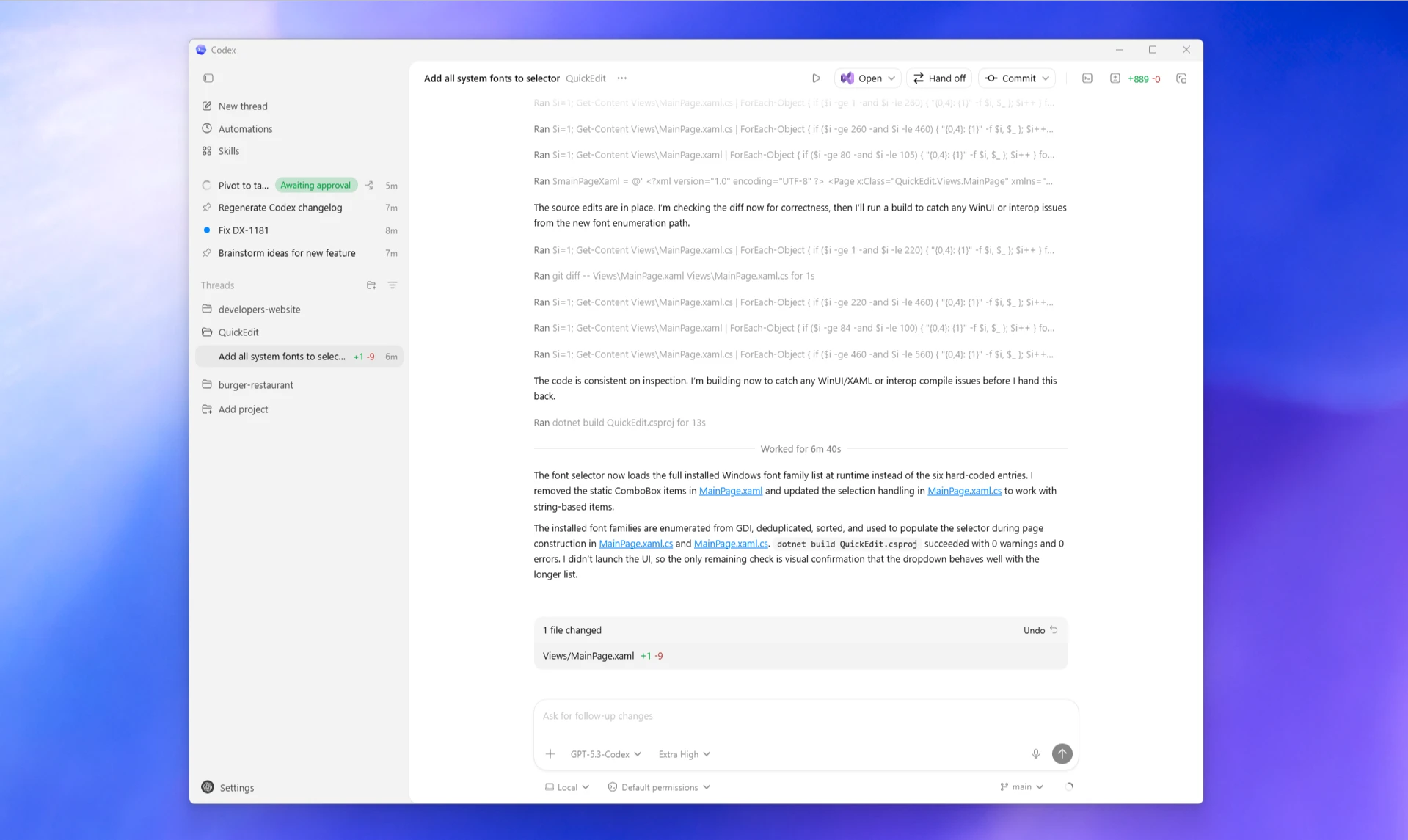
下载 ChatGPT desktop app
下载 ChatGPT desktop app for Windows。
然后按照 quickstart 开始使用。
对于 enterprises,administrators 可以通过 enterprise management tools 使用 Microsoft Store app distribution 来部署该 app。
如果你更喜欢 command-line install path,或需要替代打开 Microsoft Store UI 的方式,请运行:
winget install Codex -s msstoreNative sandbox
当 agent 在 PowerShell 中运行时,Windows 上的 ChatGPT desktop app 支持 native Windows sandbox;当你在 Windows Subsystem for Linux 2 (WSL2) 中运行 agent 时,它会使用 Linux sandboxing。要在任一模式下应用 sandbox protections,请在向 Codex 发送 messages 前,在 Composer 中把 sandbox permissions 设置为 Default permissions。
以 full access mode 运行 Codex 意味着 Codex 不受 project directory 限制,并且可能执行 unintentional destructive actions,导致 data loss。请保留 sandbox boundaries,并用 rules 做 targeted exceptions;或者根据你的 approval and security setup,把 approval policy 设置为 never,让 Codex 在不请求 escalated permissions 的情况下尝试解决问题。
按你的开发环境自定义
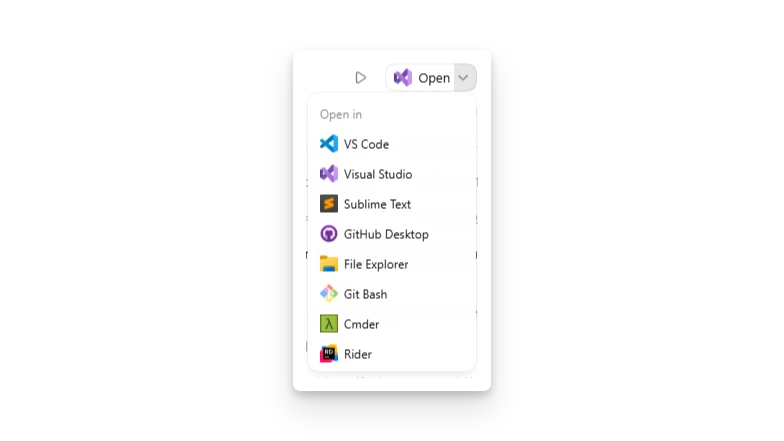
Preferred editor
为 Open 选择 default app,例如 Visual Studio、VS Code 或其他 editor。你可以按 project 覆盖该选择。如果你已经从某个 project 的 Open menu 中选择了不同 app,该 project-specific choice 会优先生效。
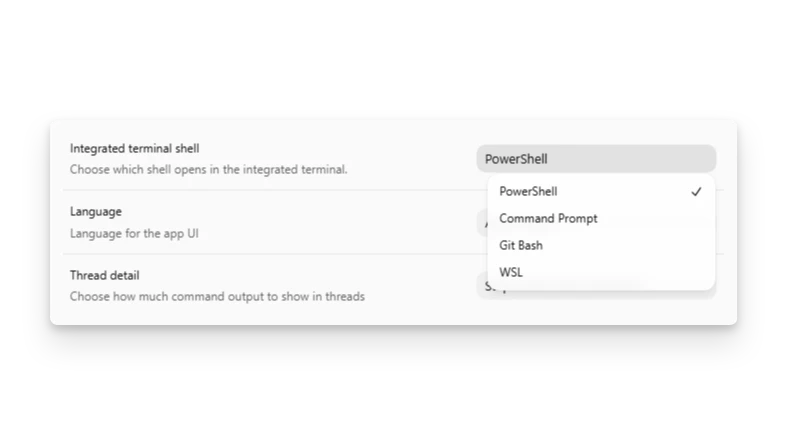
Integrated terminal
你也可以选择 default integrated terminal。根据你已安装的内容,options 包括:
PowerShell
Command Prompt
Git Bash
WSL
这个 change 只适用于 new terminal sessions。如果你已经打开了 integrated terminal,请 restart app 或启动 new thread,再期待新的 default terminal 出现。
Windows Subsystem for Linux (WSL)
默认情况下,ChatGPT desktop app 使用 Windows-native Codex agent。这意味着 agent 会在 PowerShell 中运行 commands。该 app 仍然可以在需要时使用 wsl CLI,处理位于 Windows Subsystem for Linux 2 (WSL2) 中的 projects。
如果你想从 WSL filesystem 添加 project,请点击 Add new project 或按 Ctrl+O,然后在 File Explorer window 中输入 \\wsl$\\。随后选择你的 Linux distribution 和想打开的 folder。
如果你计划继续使用 Windows-native agent,建议把 projects 存放在 Windows filesystem,并通过 /mnt/<drive>/... 从 WSL 访问。相比直接从 WSL filesystem 打开 projects,这种 setup 更可靠。
如果你希望 agent 本身在 WSL2 中运行,请打开 Settings,将 agent 从 Windows native 切换到 WSL,然后 restart app。这个 change 要等 restart 后才会生效。restart 后,你的 projects 应保持原位。
Codex 0.114 及之前支持 WSL1。从 Codex 0.115 开始,Linux sandbox 转向 bubblewrap,因此 WSL1 不再受支持。
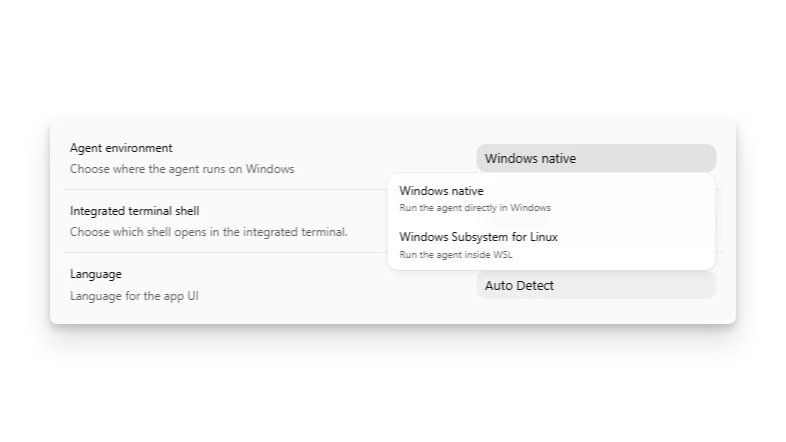
你可以独立于 agent 配置 integrated terminal。terminal options 请参见 Customize for your dev setup。你可以让 agent 保持在 WSL 中,同时 terminal 仍使用 PowerShell;也可以让二者都使用 WSL,取决于你的 workflow。
Useful developer tools
当一些常见 developer tools 已经安装好时,Codex 的效果最好:
Git:为 ChatGPT desktop app 中的 review panel 提供能力,并让你 inspect 或 revert changes。
Node.js:agent 常用的 tool,可帮助它更高效地执行 tasks。
Python:agent 常用的 tool,可帮助它更高效地执行 tasks。
.NET SDK:当你想构建 native Windows apps 时很有用。
GitHub CLI:为 Codex app 中 GitHub-specific functionality 提供能力。
可以把下面内容粘贴到 integrated terminal,或要求 Codex 安装这些工具,用 default Windows package manager winget 完成安装:
winget install --id Git.Git
winget install --id OpenJS.NodeJS.LTS
winget install --id Python.Python.3.14
winget install --id Microsoft.DotNet.SDK.10
winget install --id GitHub.cli
安装 GitHub CLI 后,运行 gh auth login,以启用 app 中的 GitHub features。
如果你需要不同的 Python 或 .NET version,请把 package IDs 改成你想要的 version。
Troubleshooting 和 FAQ
用 elevated permissions 运行 commands
如果你需要 Codex 以 elevated permissions 运行 commands,请以 administrator 身份启动 ChatGPT desktop app 本身。安装后,打开 Start menu,找到 ChatGPT,并选择 Run as administrator。Codex agent 会继承该 permission level。
PowerShell execution policy 阻止 commands
如果你以前从未在 PowerShell 中使用过 Node.js 或 npm 等 tools,Codex agent 或 integrated terminal 可能会遇到 execution policy errors。
如果 Codex 为你创建 PowerShell scripts,也可能发生这种情况。在这种情况下,PowerShell 运行这些 scripts 前,你可能需要更宽松的 execution policy。
error 可能类似这样:
npm.ps1 cannot be loaded because running scripts is disabled on this system.一种常见修复方式是把 execution policy 设置为 RemoteSigned:
Set-ExecutionPolicy -ExecutionPolicy RemoteSigned在更改 policy 前,请查看 Microsoft 的 execution policy guide,了解 details 和其他 options。
Windows 上的 local environment scripts
如果你的 local environment 使用 npm scripts 等 cross-platform commands,你可以为每个平台保留同一个 shared setup script 或一组 actions。
如果你需要 Windows-specific behavior,请创建 Windows-specific setup scripts 或 Windows-specific actions。
Actions 会在 integrated terminal 使用的 environment 中运行。参见 Customize for your dev setup。
Local setup scripts 会在 agent environment 中运行:如果 agent 使用 WSL,则在 WSL 中运行;否则在 PowerShell 中运行。
与 WSL 共享 config、auth 和 sessions
Windows app 与 Windows 上的 native Codex 使用同一个 Codex home directory:%USERPROFILE%\.codex。
如果你也在 WSL 中运行 Codex CLI,CLI 默认会使用 Linux home directory,因此不会自动与 Windows app 共享 configuration、cached auth 或 session history。
要共享它们,请使用以下 approaches 之一:
在 file system 上同步 WSL ~/.codex 与 %USERPROFILE%\.codex。
通过设置 CODEX_HOME,让 WSL 指向 Windows Codex home directory:
export CODEX_HOME=/mnt/c/Users/<windows-user>/.codex如果你希望每个 shell 都使用这个 setting,请把它添加到 WSL shell profile,例如 ~/.bashrc 或 ~/.zshrc。
Git features 不可用
如果你没有在 Windows 上 native 安装 Git,app 将无法使用某些 features。请在 PowerShell 或 cmd.exe 中运行 winget install Git.Git 来安装。
从 \\wsl$ 打开的 projects 检测不到 Git
目前,如果你想让 Windows-native agent 使用一个也可从 WSL 访问的 project,最可靠的 workaround 是把 project 存放在 native Windows drive 上,并通过 /mnt/<drive>/... 在 WSL 中访问。
Cmder 未出现在 open dialog 中
如果已安装 Cmder,但它没有出现在 ChatGPT desktop app 的 open dialog 中,请把它添加到 Windows Start Menu:右键点击 Cmder,选择 Add to Start,然后 restart app 或 reboot。